
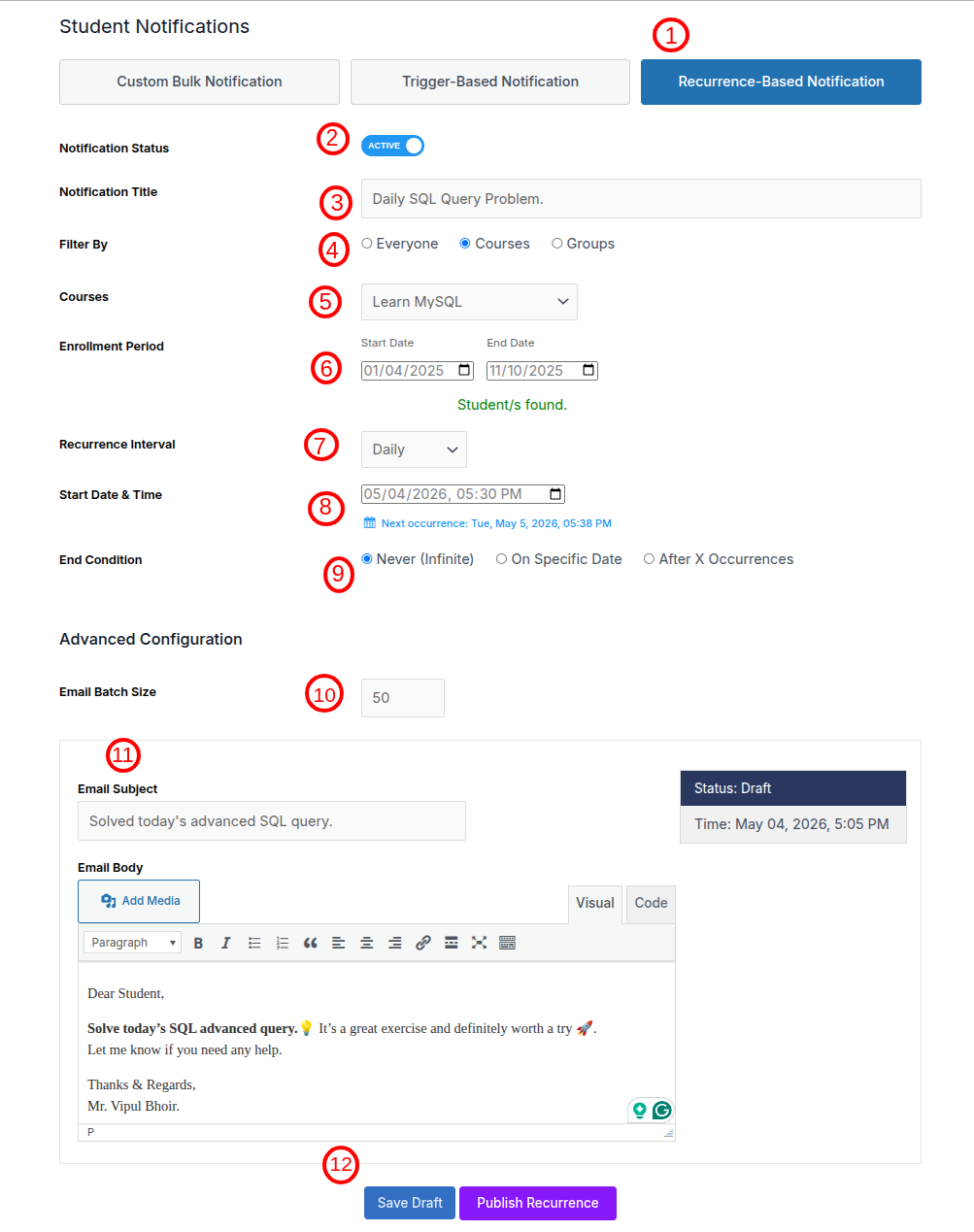
- Switch to the Recurrence-Based Notification tab: Go to the Student Notifications page and switch from Custom Bulk Notification to the Recurrence-Based Notification tab.
- Set the Notification Status: Enable or disable the notification using the Notification Status toggle.
- Active: The recurrence notification will run as per the configured schedule.
- Inactive: The notification will remain saved but will not send emails.
- Add the Notification Title: Enter a clear title for the notification. Example:
- Daily SQL Query Problem
- Weekly Course Reminder
- Monthly Student Progress Email
- Choose the Student Filter: Use the Filter By option to decide which students should receive the recurring notification.
Available options:
- Everyone: Sends the notification to all students.
- Courses: Sends the notification only to students enrolled in the selected course.
- Groups: Sends the notification only to students enrolled in the selected group.
- Select Courses or Groups
Based on the selected filter, the related field will appear dynamically.
- If Courses is selected, choose one course.
- If Groups is selected, choose one group.
- If Everyone is selected, no course or group selection is required.
Example: Course selected: Learn MySQL
- Set the Enrollment Period: Use the Enrollment Period fields to filter students based on their enrollment date.
Fields available:
- Start Date: The enrollment start date.
- End Date: The enrollment end date.
Only students enrolled within this date range will be included. After selecting the enrollment period, the system will show the number of students found.
Example: Student/s found.
- Select the Recurrence Interval: Choose how often the notification should be sent. Available recurrence options may include. Eg. “Daily”.
- Set the Start Date & Time: Select the date and time when the recurring notification should start. Eg. “05/04/2026, 05:30 PM”. The system will also display the next scheduled occurrence.
- Choose the End Condition: Select when the recurrence should stop.
Available options:
- Never / Infinite: The notification will continue sending based on the selected interval until manually disabled or deleted.
- On Specific Date: The notification will stop after the selected end date.
- After X Occurrences: The notification will stop after it has been sent the specified number of times.
- Configure Advanced Settings: Use the Advanced Configuration section to control how emails are processed.
Email Batch Size: This field defines how many emails should be sent in one batch. Eg. 50.
This is useful when sending notifications to many students, as it helps control server load and avoids sending too many emails at once.
- Configure Email Content: Add the email subject and body that will be sent to the selected students on each recurrence.
Email Subject: This is the subject line of the email. Eg. “Solved today’s advanced SQL query.”
Email Body: Use the WYSIWYG editor to create the email message.
- Save Draft or Publish Recurrence: Once all fields are configured, choose one of the available actions.
- Save Draft: Saves the recurrence notification without activating it.
- Publish Recurrence: Activates the notification and schedules it based on the selected recurrence interval, start date, and end condition.
- Update: Once a recurrence notification is created, it can be updated whenever required. If the notification is saved as Draft, all fields can be edited. If the notification is already Published, you can update fields such as title, filters, email content, batch size, recurrence schedule, and end condition, depending on the plugin rules.