
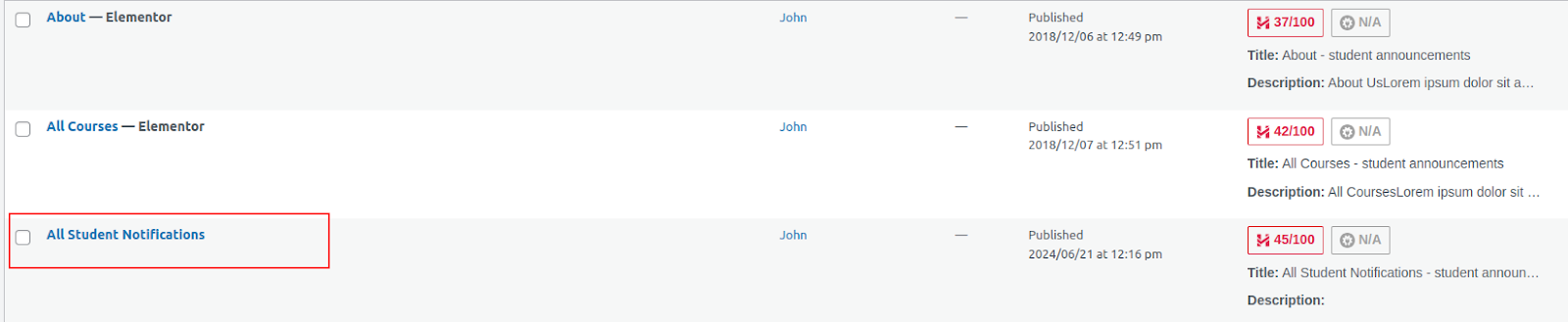
In addition to creating student email notifications from the frontend, you can also manage all notifications directly from a dedicated frontend page. Upon installing or updating the plugin, a new page titled ‘All Student Notifications’ (slug: ‘all-student-notifications’) will be created.
On this page, users can add new notifications, manage existing ones, and perform actions such as editing or trashing individual notifications. There is also an option to bulk trash multiple notifications at once or search for specific notifications.
Key Features of Manage Student Notifications
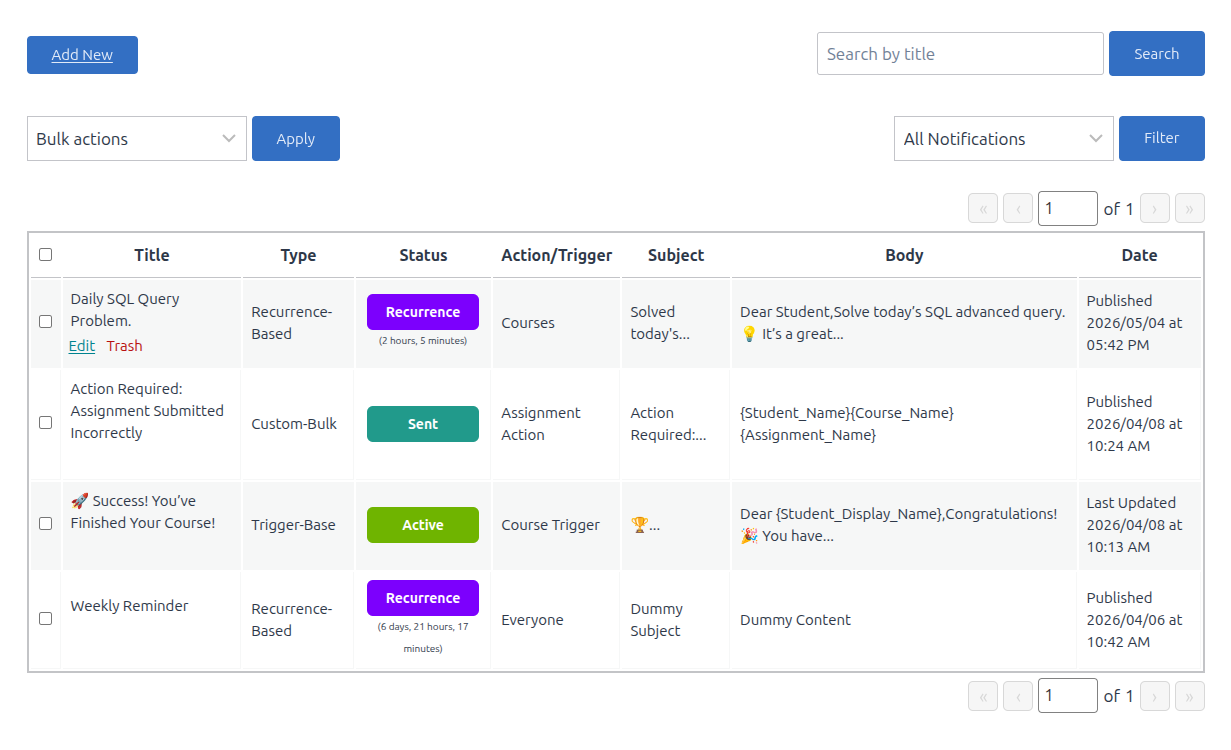
- Add New Notification
A button at the top allows you to create a new student notification directly from this screen. - Bulk Actions
You can select multiple notifications and apply bulk actions such as:- Delete
- Move to Trash
- Search Functionality
The search bar lets you quickly locate notifications by title, subject, or keyword. - Notifications Table
The main table lists all notifications with the following columns:- Title – The name of the notification.
- Status – Indicates whether the notification is Sent, Draft, Active, Scheduled, or another status.
- Type – Displays the notification type: custom-bulk or trigger-based or recurrence.
- Action/Trigger – Shows the action/trigger type (e.g., Quiz Action, Course Action, Assignment Trigger, etc.).
- Subject – The email subject line of the notification.
- Body – A preview of the message being sent to students.
- Date – The date and time the notification was published.
Each row also includes quick actions such as Edit, Trash, or View.
- Filter Notifications:The Filter Notifications option on the All Notifications page allows administrators/group leaders to quickly sort and view notifications based on their type. Using this filter, you can display notifications according to the following categories:
- Custom-Bulk Notifications
- Trigger-Based Notifications
- Recurrence-Based Notifications
By selecting the desired notification type, the list updates to display only the relevant notifications, making it easier to manage and locate them efficiently.