
The AI Product Recommendations Pro for WooCommerce Setup Wizard provides a quick and convenient way to configure the plugin after installation. Instead of visiting each plugin settings page individually, the wizard summarizes the most important recommendation features and provides direct access to their respective settings.
The Setup Wizard is divided into the following eight steps:
- Welcome
- License
- Pre-Purchase
- Post-Purchase
- Product Discovery
- General
- AI Credential
Completed steps are highlighted in green, while the currently active step is highlighted in blue. Use the Next button to continue through the wizard.
1. Welcome
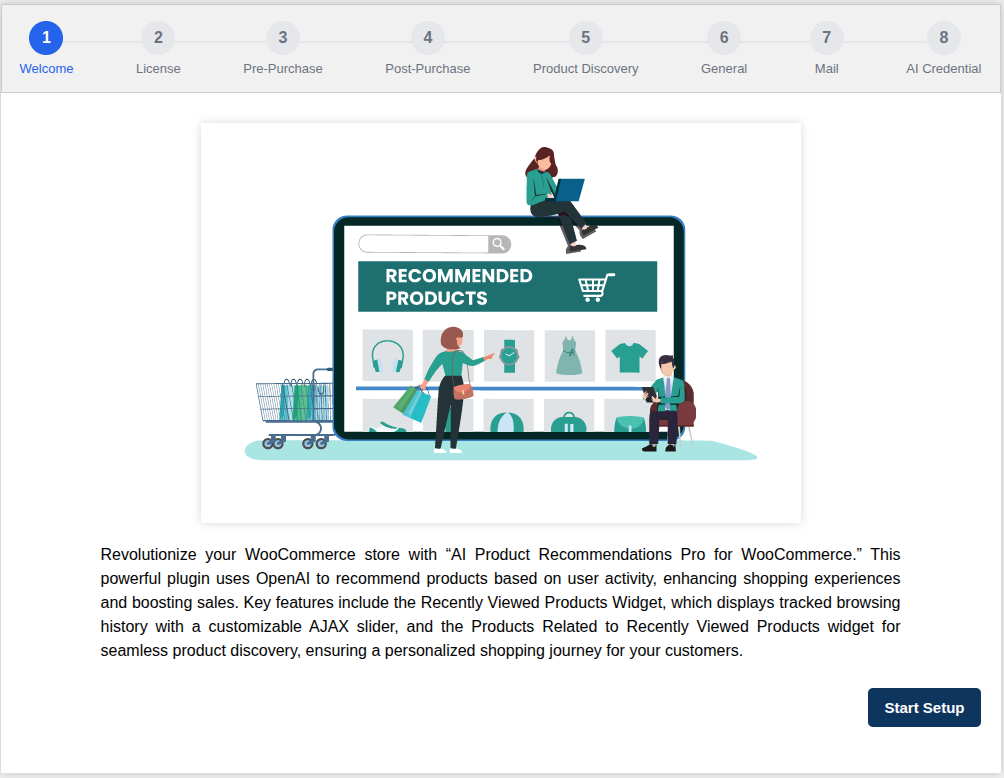
The Welcome screen provides a brief introduction to AI Product Recommendations Pro for WooCommerce and its major features.
The plugin helps WooCommerce stores display product recommendations based on customer browsing activity, purchase history, product relationships, store configuration, and AI-generated recommendations.
Some of the key recommendation features available through the plugin include:
- Recently Viewed Products
- Products Related to Recently Viewed Products
- Sale Items Related to Recently Viewed Products
- Buy It Again
- Products Related to Past Purchases
- All Products On-Sale
- Best Selling Products
- Featured Products
- Newly Arrived Products
- Email-based product recommendations
- AI-powered product recommendations
Click Start Setup to begin configuring the plugin.
2. License
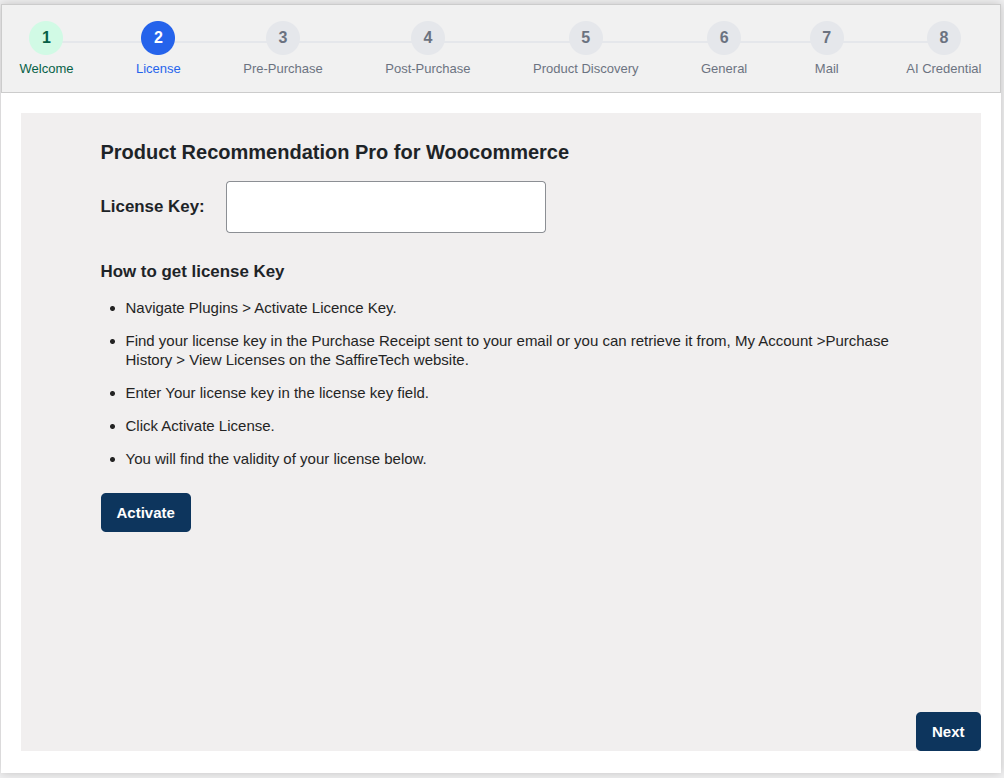
The License step allows you to activate your plugin license.
License Key
Enter the license key received with your plugin purchase into the License Key field.
You can locate your license key in your purchase receipt or through the license section of your account on the SaffireTech website.
To activate the license:
- Enter your license key.
- Click Activate.
- The plugin will validate the entered license.
- Once successfully activated, the license status will be displayed.
The same license activation process is also available from the plugin’s dedicated license settings page.
Click Next to continue.
3. Pre-Purchase
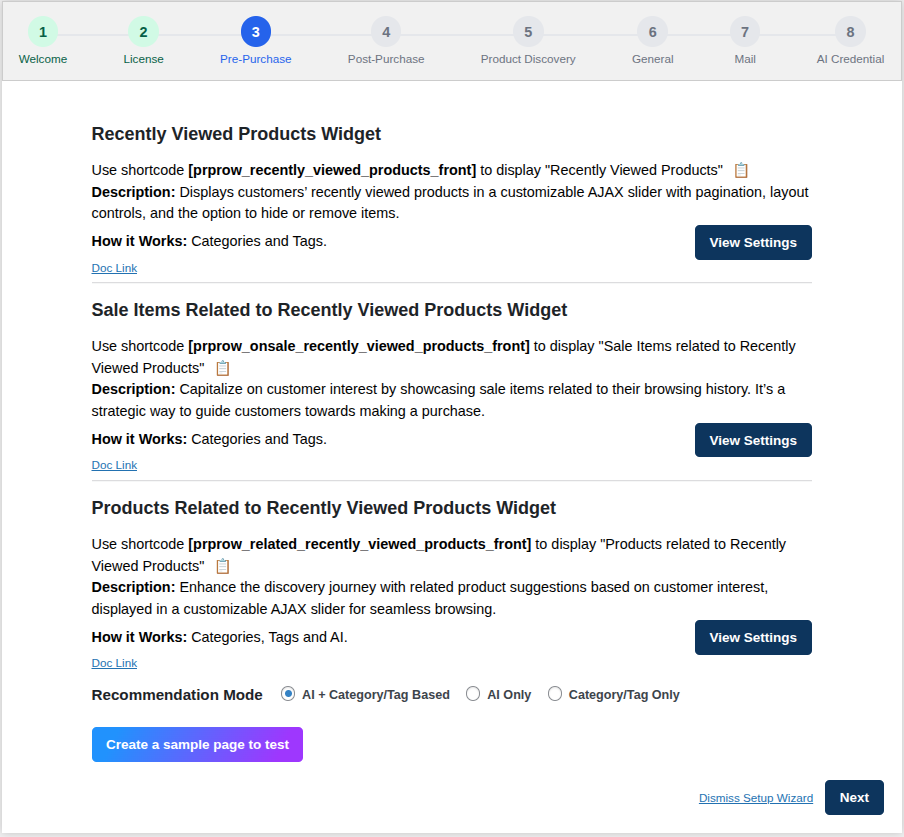
The Pre-Purchase step summarizes recommendation features that use a customer’s browsing activity before a purchase is completed.
The following recommendation widgets are available.
Recently Viewed Products Widget
- The Recently Viewed Products feature displays products previously viewed by the customer.
- Use the shortcode: [prprow_recently_viewed_products_front]
- Additional configuration options are available on the feature’s dedicated settings page.
- Click View Settings to configure the complete Recently Viewed Products settings.
Sale Items Related to Recently Viewed Products Widget
- This feature displays products that are currently on sale and are related to products recently viewed by the customer.
- Use the shortcode: [prprow_onsale_recently_viewed_products_front]
- It can be used to bring relevant discounted products to the customer’s attention based on their browsing activity.
- Additional configuration options are available on the feature’s dedicated settings page.
- Click View Settings to configure the complete feature.
Products Related to Recently Viewed Products Widget
- This feature recommends products related to items the customer has recently viewed.
Use the shortcode: [prprow_related_recently_viewed_products_front] - The recommendations can be generated using product categories and tags, AI-generated recommendations, or a combination of both.
- Recommendation Mode
- For recommendation features that support AI, select one of the following modes:
- AI + Category/Tag Based – AI-generated recommendations are used when available. If AI recommendations are unavailable, category- or tag-based recommendations are used as a fallback.
- AI Only – Only AI-generated recommendations are displayed.
- Category/Tag Only – Recommendations are generated using product categories and tags without using AI.
- Create a Sample Page
- Click Create a sample page to test to quickly generate a page where you can preview and test the recommendation features on your WooCommerce store.
- Additional configuration options are available on the feature’s dedicated settings page.
Click View Settings to configure the complete feature.
Click Next to continue.
4. Post-Purchase
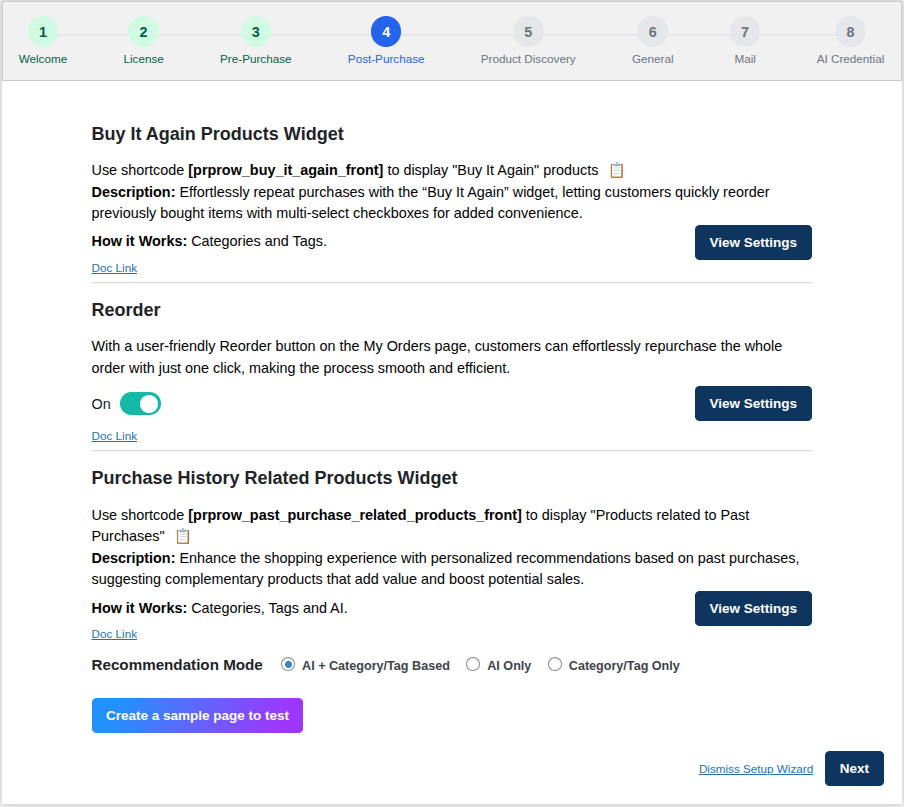
The Post-Purchase step contains recommendation features designed for customers who have already placed orders on your store.
Buy It Again Products Widget
- The Buy It Again feature helps customers quickly purchase products they have ordered previously.
- Use the shortcode: [prprow_buy_it_again_front]
- Additional configuration options are available on the feature’s dedicated settings page.
- Click View Settings to configure the feature.
Reorder
- The Reorder feature provides customers with a convenient way to purchase an entire previous order again.
- Use the On/Off switch in the Setup Wizard to enable or disable this feature.
- When enabled, the reorder option becomes available from the customer’s order area under My Account → Orders.
- Click View Settings for the full configuration.
Purchase History Related Products Widget
- This feature recommends products based on the customer’s previous purchases.
- Use the shortcode: [prprow_past_purchase_related_products_front]
- Recommendations can use purchase history together with product categories, tags, or AI-generated recommendations.
- Additional configuration options are available on the feature’s dedicated settings page.
Click View Settings to configure the feature. - Recommendation Mode
- Choose between:
- AI + Category/Tag Based
- AI Only
- Category/Tag Only
- The selected mode determines how recommendations related to past purchases are generated.
You can also click Create a sample page to test to preview the post-purchase recommendation features. - Click Next to continue.
5. Product Discovery
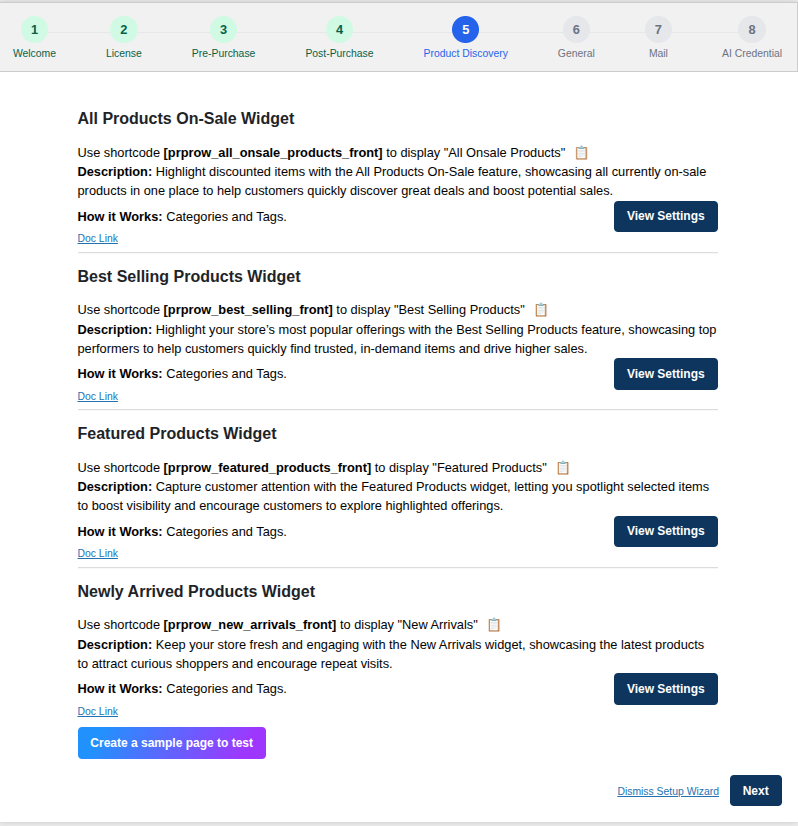
The Product Discovery step provides recommendation widgets that help customers discover products across your WooCommerce catalog.
All Products On-Sale Widget
- Displays products that are currently available at a sale price.
- Use the shortcode: [prprow_all_onsale_products_front]
- Additional configuration options are available on the feature’s dedicated settings page.
- Click View Settings to configure the widget.
Best Selling Products Widget
- Displays your store’s best-selling products and helps customers quickly discover popular products.
- Use the shortcode: [prprow_best_selling_front]
- Additional configuration options are available on the feature’s dedicated settings page.
- Click View Settings to configure the widget.
Featured Products Widget
- Displays products that have been marked as featured in WooCommerce.
- Use the shortcode: [prprow_featured_products_front]
- Additional configuration options are available on the feature’s dedicated settings page.
- Click View Settings to configure the widget.
Newly Arrived Products Widget
- Displays recently added products and helps customers discover the newest items available in your store.
- Use the shortcode: [prprow_new_arrivals_front]
- Additional configuration options are available on the feature’s dedicated settings page.
- Click View Settings to configure the widget.
- Create a Sample Page
- Click Create a sample page to test to generate a sample page containing product discovery recommendations so that you can quickly review how the sliders appear on the frontend.
- Click Next to continue.
6. General
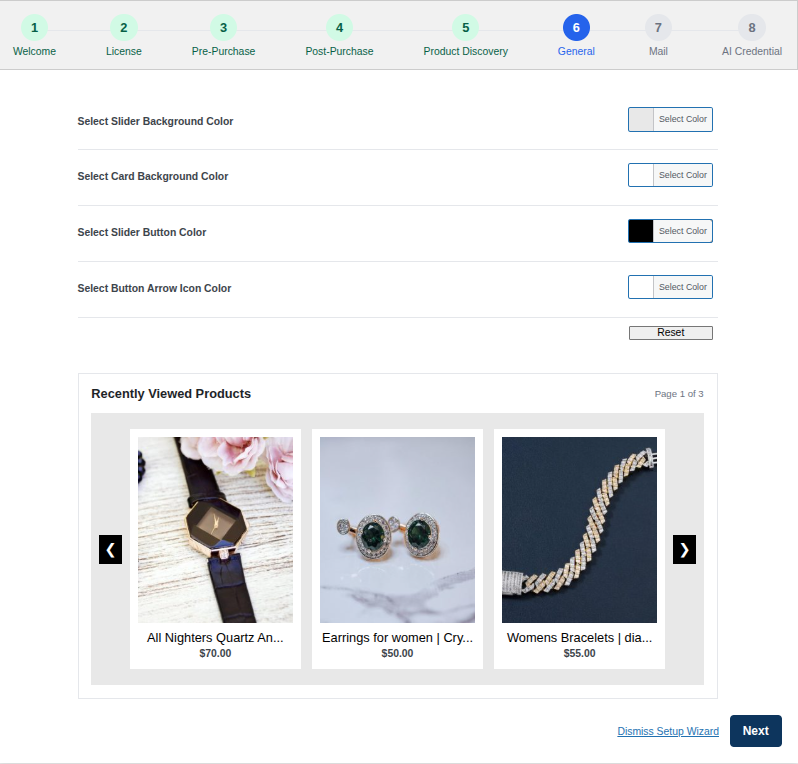
- The General step provides quick access to the visual styling options used by the recommendation product sliders.
- Select Slider Background Color: Choose the background color displayed behind the products inside the recommendation slider.
- Select Card Background Color: Choose the background color of individual product cards displayed inside the slider.
- Select Slider Button Color: Choose the color of the Previous and Next navigation buttons.
- Select Button Arrow Icon Color: Choose the color of the arrow icons displayed inside the slider’s navigation buttons.
- Slider Preview: A live product-slider preview is displayed below the color settings. Use this preview to check how your selected colors work together before completing the setup.
- Reset: Click Reset to restore the slider colors to their default configuration.
- Additional global options, including product rating display, out-of-stock product handling, discontinued-product handling, and after-cart recommendation tabs, are available from the complete General Settings page.
- Click Next when the slider appearance is configured.
7. E-mail
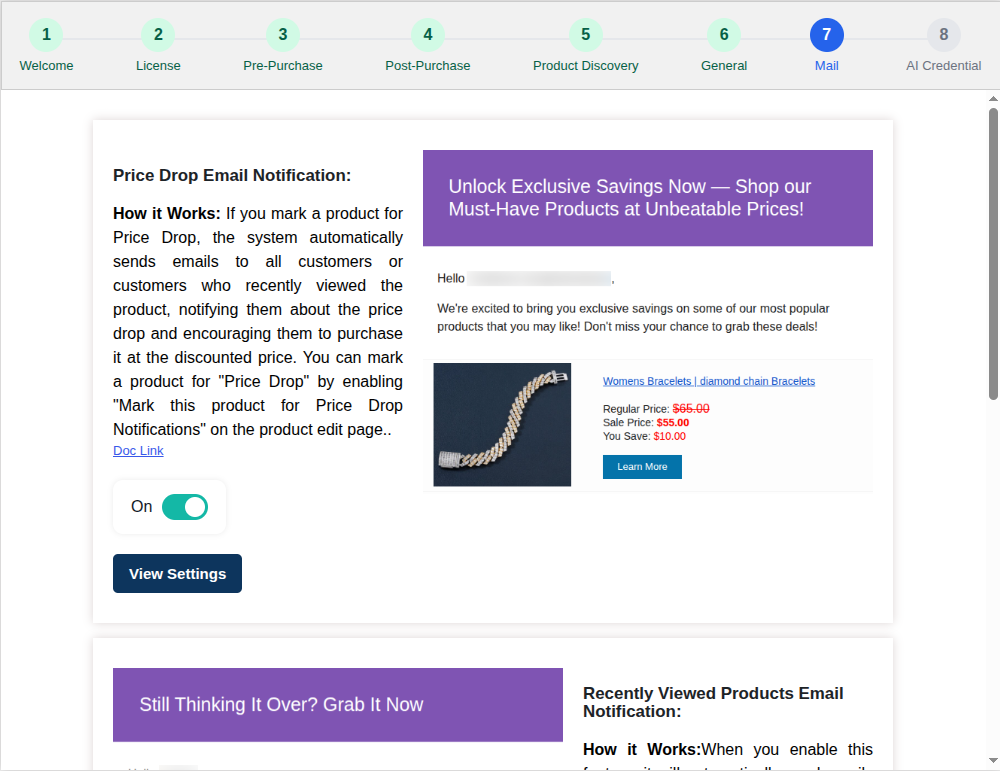
The Mail step allows you to quickly enable or disable important automated product recommendation emails.
Each email section contains a preview of the email template along with a View Settings button for accessing the complete configuration.
Price Drop Email Notification
- The Price Drop Email Notification can notify customers when a product they are interested in becomes available at a reduced price.
- Use the On/Off switch to enable or disable the notification.
- The complete settings allow you to configure:
- Additional configuration options are available on the notification’s dedicated settings page.
Click View Settings to customize the notification.
Recently Viewed Products Email Notification
- This notification sends product reminders based on products a customer has recently viewed, helping customers return to products they previously showed interest in.
- Use the On/Off switch to enable or disable this email.
- Additional configuration options are available on the notification’s dedicated settings page.
- Click View Settings for additional configuration.
Purchase Products Recommendation Email Notification
- This email provides customers with recommendations based on products they have purchased previously.
- Use the On/Off switch to enable or disable the feature.
- Additional configuration options are available on the notification’s dedicated settings page.
- Click View Settings to customize the notification.
Proceed with AI Recommendation
If you intend to use AI-generated product recommendations, click Proceed with AI recommendation to continue to the AI Credential step.
If you do not want to configure AI recommendations at this time, click Finish to complete the Setup Wizard.
8. AI Credential

The AI Credential step connects the plugin’s AI recommendation functionality with your OpenAI API configuration.
- Enter your OpenAI API key in the provided field.
- After entering the key, click Validate API Key.
- The plugin checks the entered credential and displays a validation status below the field. A successful validation confirms that the credential can be used by the plugin.
- After validating the API key, use the Select OpenAI Model dropdown to choose the model that the plugin should use for AI recommendation requests.
- The plugin’s main AI credential settings follow the same process: enter the API key, validate it, select the required model, and save the configuration.
Finish
Once your API credential and model have been configured, click Finish to complete the Setup Wizard.
Setup Wizard Navigation and Quick Actions
Several common actions are available throughout the Setup Wizard:
- Next – Continues from the current step and opens the next Setup Wizard tab.
- View Settings – Opens the complete settings page for the selected recommendation feature.
- Doc Link – Opens the relevant documentation for the feature.
- Create a sample page to test – Creates a sample page that can be used to preview recommendation sliders on the frontend.
- Dismiss Setup Wizard – Exits the Setup Wizard without completing the remaining steps. The individual plugin settings can still be configured separately.
- Proceed with AI recommendation – Continues from the Mail section to AI credential configuration.
- Finish – Completes the Setup Wizard.
The Setup Wizard is intended as a quick configuration interface. More advanced settings remain available from their corresponding pages under Product Recommendations Pro in the WordPress Dashboard.
After completing the wizard, administrators can return to individual feature settings whenever they need to adjust slider layouts, filters, recommendation modes, email schedules, AI configuration, or other advanced options.