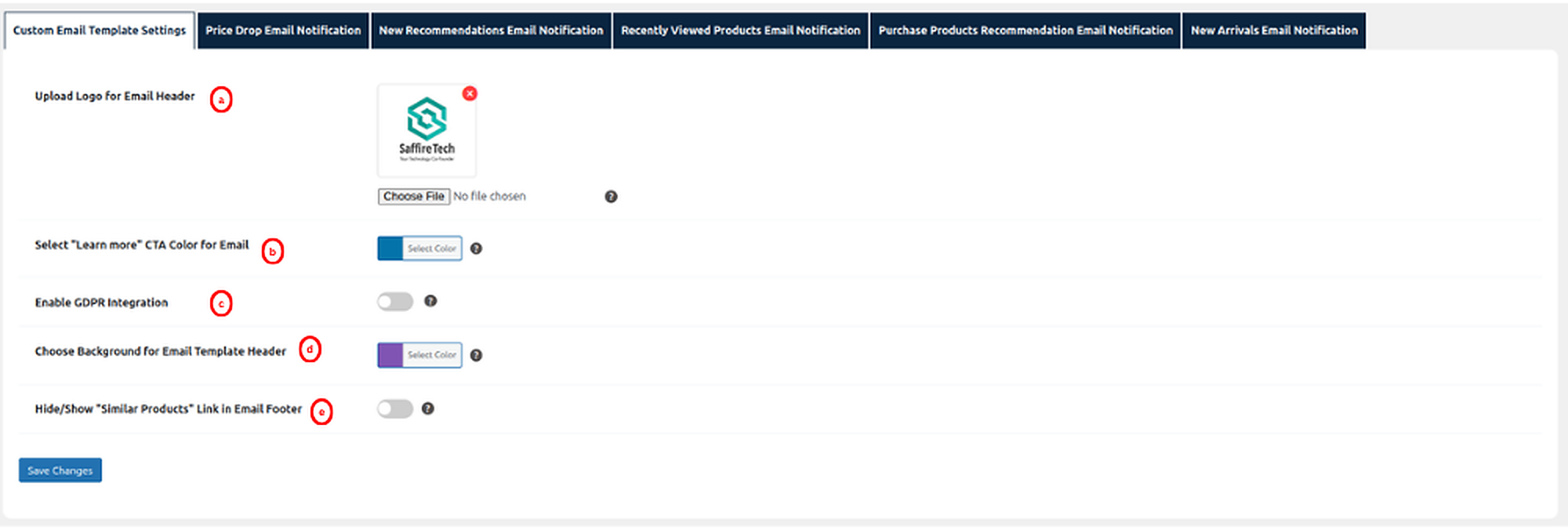
Customize Email Template
- Upload Logo for Email Header: This setting allows admin to set company’s logo, which will be displayed in the header of the custom email template.
- Select “Learn more” CTA Color for Email: This setting allows you to pick the color to change color of learn more cta in email products grid
- Enable GDPR Integration: By checking this settings, confirmation text below the email id will be shown on checkout page.
- Choose Background for Email Template Header : This setting allows you to pick the background color to change background color of email header
Price Drop Email Notification
- Enable Price Drop Emails: This setting allows you to choose whether to send emails to users or not.
- Select Email Recipients: This setting allows you to choose whether to send emails to all users or only to those who have recently viewed products on your site.
- Email Frequency: This setting allows you to schedule an email to be sent One-time, Daily, Weekly and Monthly according to the selected trigger.
- Send Day & Time: This setting allows you to schedule a date-time event that will trigger an email notification only according to the provided date and time.
- Email Header: This setting allows you to add content body for the custom email template.
- Email Content:This setting allows you to add content body for the custom email template.

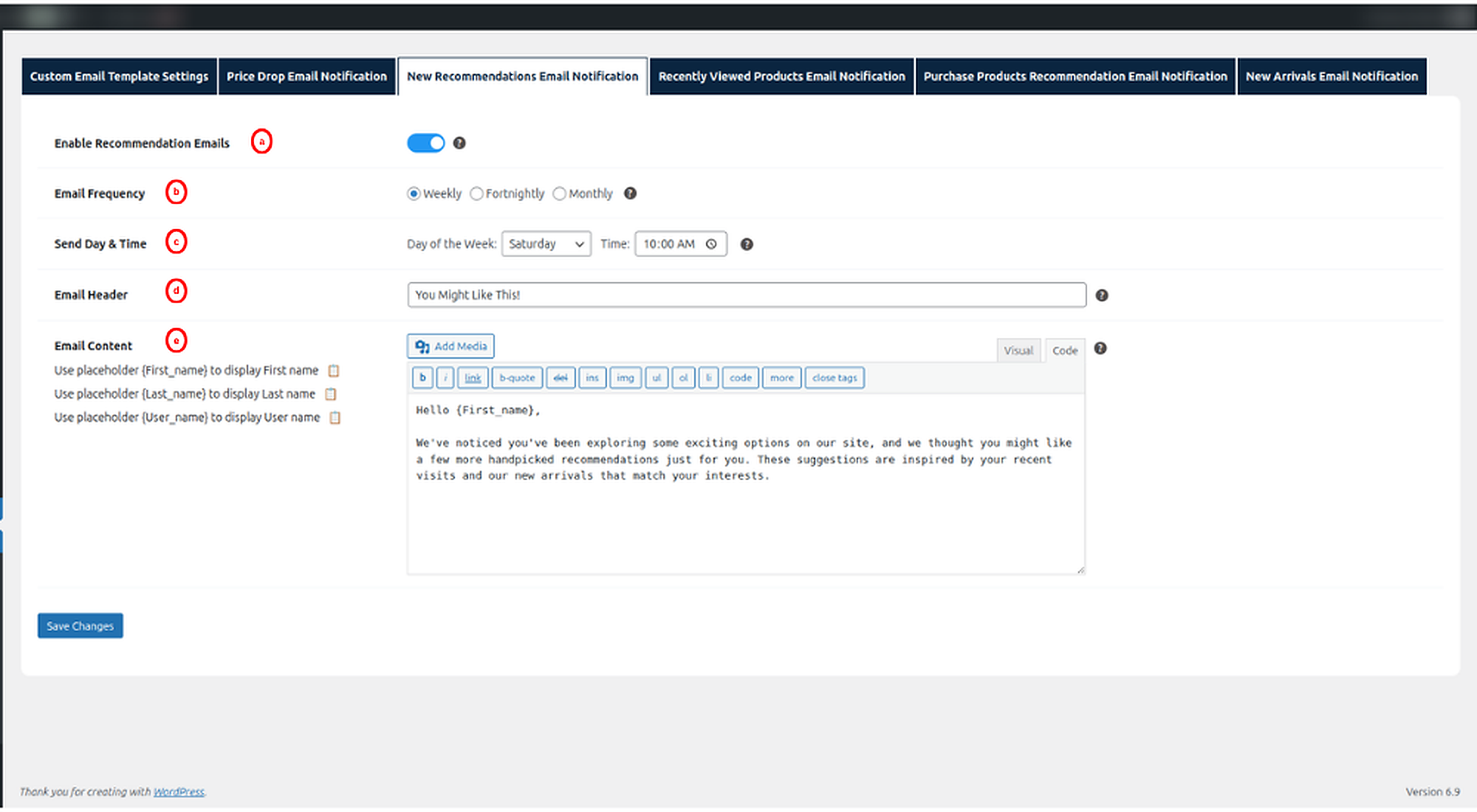
New Recommendations Email Notification
- Enable Recommendation Emails: This setting allows you to choose whether to send emails to users or not.
- Email Frequency: This setting allows you to schedule an email to be sent Weekly, After 15days and Monthly.
- Send Day & Time: This setting allows you to schedule a date-time event that will trigger an email notification only according to the provided date and time.
- Email Header: This setting allows you to add content body for the custom email template.
- Email Content: This setting allows you to add content body for the custom email template.
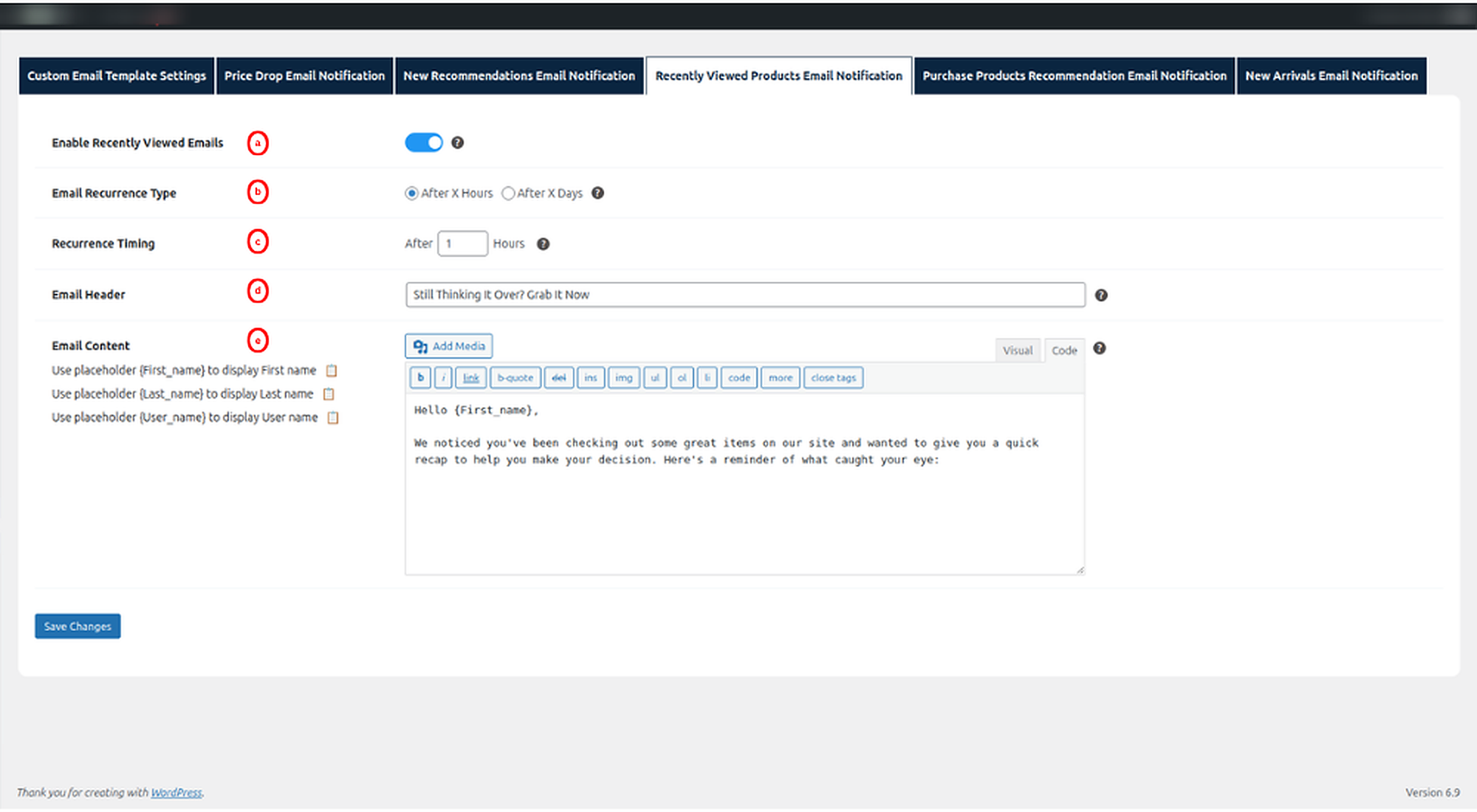
Recently Viewed Products Email Notification
- Enable Recently Viewed Emails: This setting allows you to choose whether to send emails to users or not.
- Email Recurrence Type: This setting allows you to schedule an email to be sent every ‘n’ hours or ‘n’ days.
- Recurrence Timing: This setting allows you to choose the hours of the day to schedule an email to be sent every ‘n’ hours if a user has viewed a new batch of products.
- Email Header: This setting allows you to add content body for the custom email template.
- Email Content: This setting allows you to add content body for the custom email template.
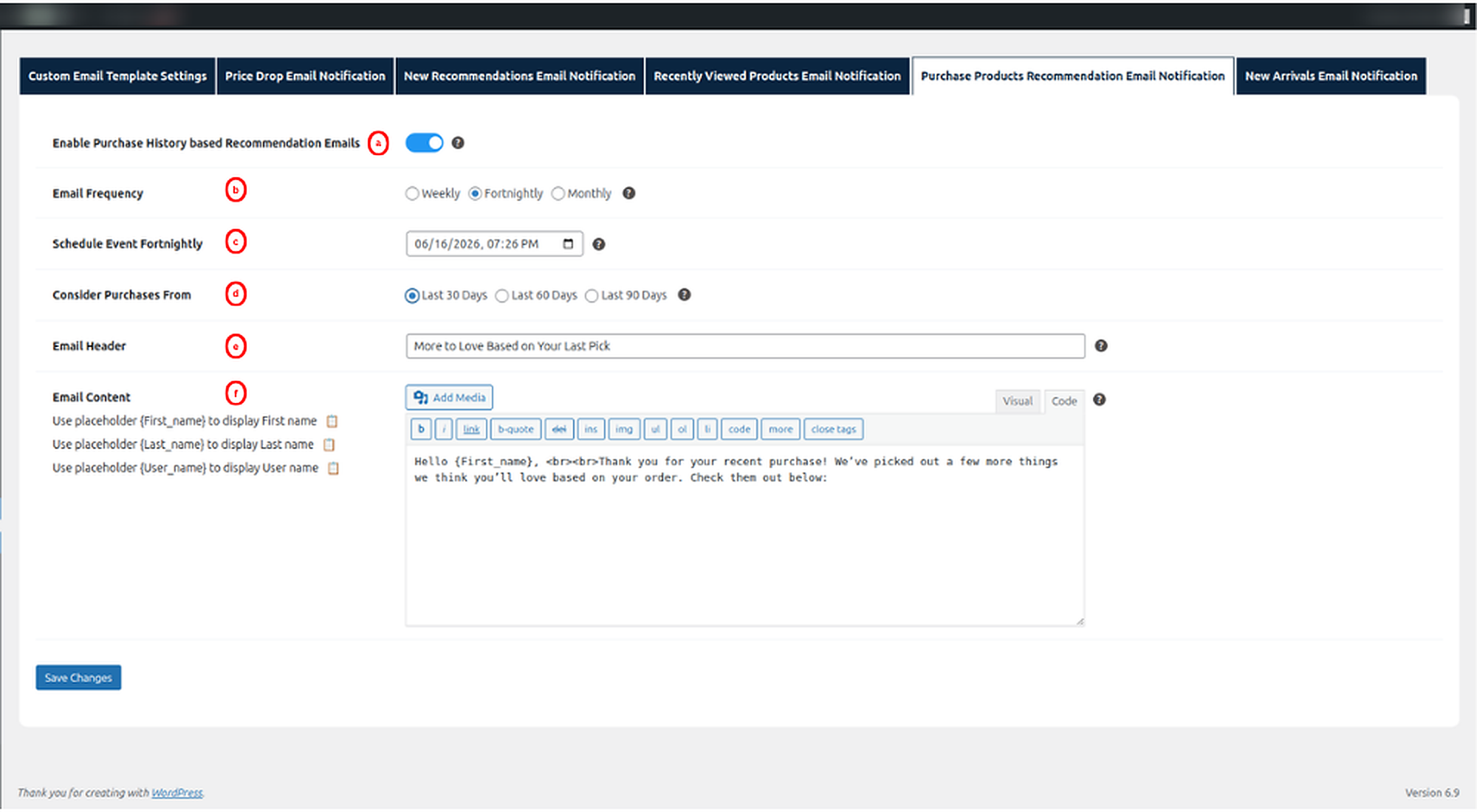
Purchase Products Recommendation Email Notification
- Enable Purchase History based Recommendation Emails: This setting allows you to choose whether to send emails to users or not.
- Email Frequency: This setting allows you to schedule an email to be sent every ‘n’ hours or ‘n’ days.
- Send Day & Time: This setting allows you to choose the hours of the day to schedule an email to be sent every ‘n’ hours if a user has viewed a new batch of products.
- Consider Purchases From : This setting allows you to define the time range (in days) to retrieve previously purchased products that will be included in the email content.
- Email Header: This setting allows you to add content body for the custom email template.
- Email Content: This setting allows you to add content body for the custom email template.
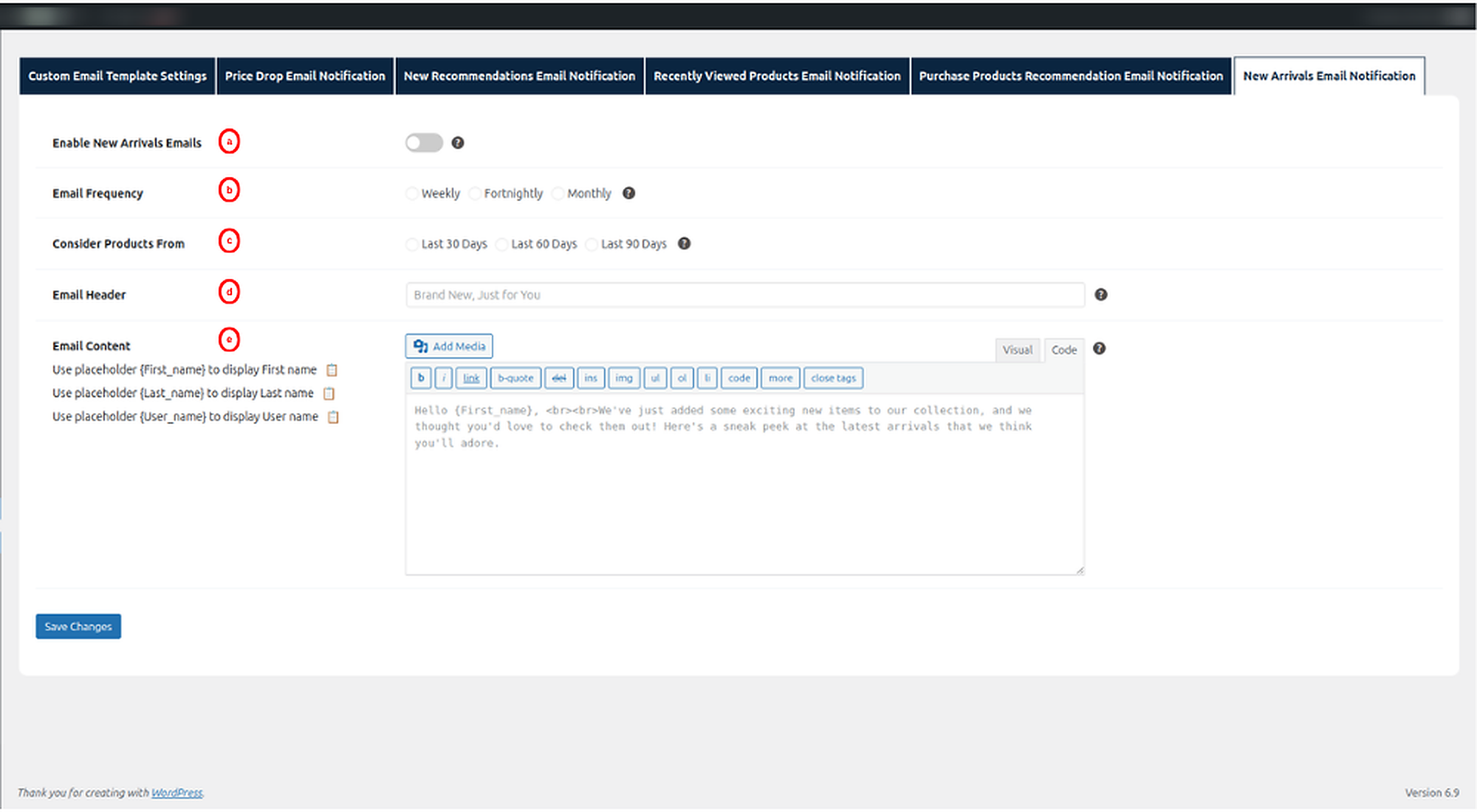
New Arrival Email Notification
- Enable New Arrivals Emails: This setting allows you to choose whether to send emails to users or not.
- Email Frequency: This setting allows you to schedule an email to be sent every ‘n’ hours or ‘n’ days.
- Send Day & Time: This setting allows you to choose the hours of the day to schedule an email to be sent every ‘n’ hours if a user has viewed a new batch of products.
- Consider Products From: This setting allows you to define the time range (in days) to identify newly added products that will be included in the email content.
- Email Header: This setting allows you to add content body for the custom email template.
- Email Content: This setting allows you to add content body for the custom email template.