Products related to Past Purchases
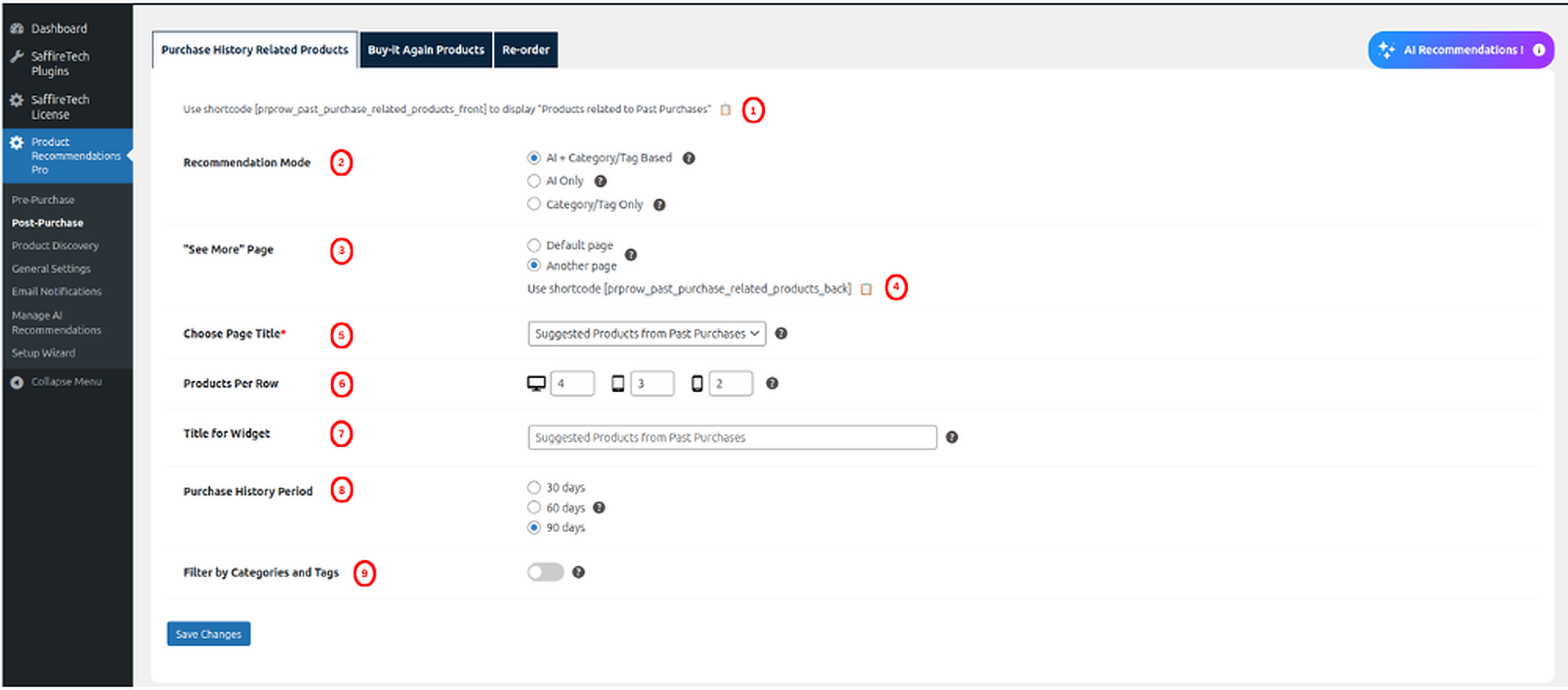
- Using the button (1), admins can copy a shortcode to paste on any page. This shortcode renders the product’s slider.
- Recommendation Mode: This setting allows the admin to choose how product recommendations are displayed on the product page (sidebar) and sent via email. There are three available modes:
- AI + Category/Tag Based
If AI-generated recommendations are available for a product, they will be shown. If not, the system will fall back to showing recommendations based on the product’s category or tags. - AI Only
Only AI-generated recommendations will be shown. If no AI suggestions are available for a product, no recommendations will be displayed. - Category/Tag Only
Recommendations will be shown strictly based on the product’s category or tags. AI suggestions will not be used in this mode.
- AI + Category/Tag Based
- “See More” Page : This setting lets admin to change the destination of the “See more” link for “Products related to Past Purchases”. By default, it leads to the standard page. If admin choose the “Another page” option, admin can then specify the page title in the “Choose page title” field.
- Using the button (c), admins can copy a shortcode to paste on any page. This shortcode renders all products on a page.
- Choose page title : ( Mandatory Field if “Another page” option is selected ) In this field, admin can select preferred page from the dropdown. The selected page should contain the shortcode [prprow_past_purchase_related_products_back]. This page will open when users click the “See more” link. This link is visible on the “Products related to Past Purchases” products slider.
- Products Per Row : This setting allows admin to specify the number of products to display within the “Products related to Past Purchases” products slider.
- Title for Widget : This setting enables admin to specify the title admin want to display for the “Products related to Recently Viewed Products” widget, products slider and products page
- Purchase History Period : This setting enables admin to choose the number of days within which products purchased by the user and products related to it will be displayed. There are 3 options provided 30 days, 60 days, 90 days. By default it is set to 30 days.
Filter Products
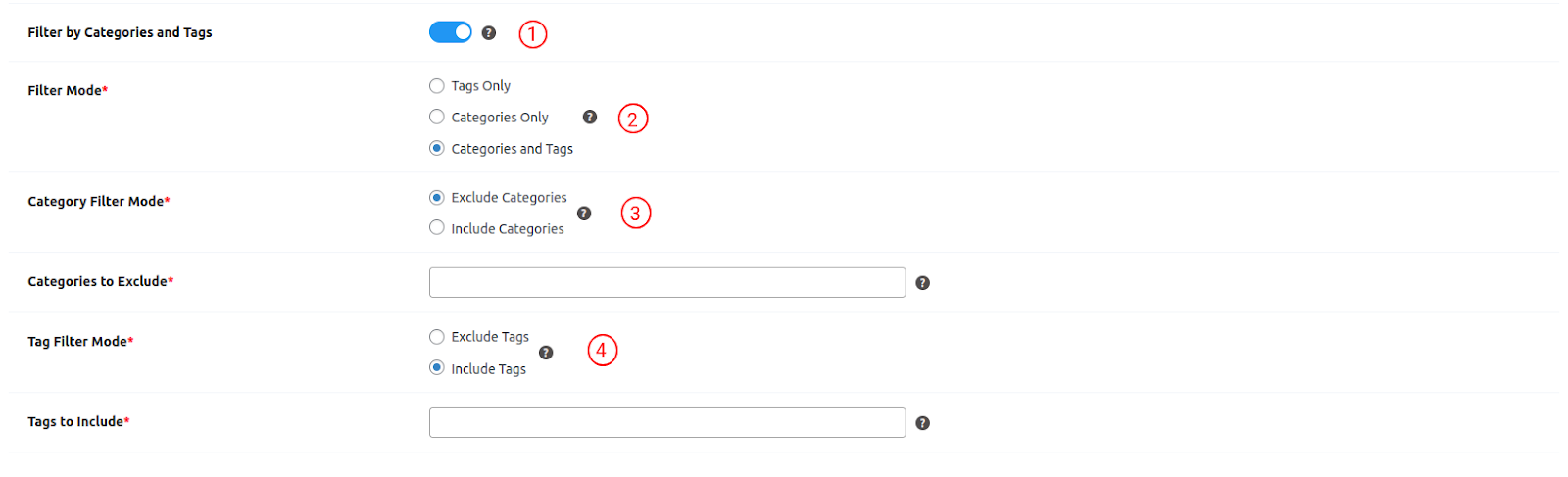
The filter will be effective for Products related to Past Purchases.
- Filter by Categories and Tags: Toggle the switch ‘Filter by Categories and Tags’ to include or exclude certain products based on their categories or tags. By default, all products are tracked.
- Filter Mode : ( Mandatory Field if ‘Filter by Categories and Tags’ switch is on )This setting allows to select of the filter mode for products, offering the flexibility to refine products displayed to users based on categories, tags, or a combination of both. These filter modes serve as powerful tools, allowing to inclusion or exclusion of products based on specific criteria.
- Categories Only: Products will be filtered exclusively by their assigned categories.
- Tags Only: Products will be filtered exclusively by their assigned tags.
- Categories and Tags: This option enables a comprehensive filter, considering both categories and tags simultaneously.
- Category Filter Mode : ( Mandatory Field if ‘Categories Only’ or ‘Categories and Tags’ is chosen) This setting allows to choose “Exclude Categories” to remove products of those categories, and “Include Categories” to display products having those categories in the widget, products slider and products page
- Categories to Exclude: This setting allows to select multiple categories to exclude products of that categories from widget, products slider and products page
- Categories to Include: This setting allows to select multiple categories to include products of that categories in widget, products slider and products page
- Tag Filter Mode : ( Mandatory Field if ‘Tags Only’ or ‘Categories and Tags’ is chosen ) This setting allows to choose “Exclude Tags” to remove products containing those tags, and “Include Tags” to display products containing those tags from the widget, products slider and products page.
- Tags to Exclude: This setting allows the admin to select multiple tags to exclude products containing those tags from the widget, products slider and products page
- Tags to Include: This setting allows the admin to select multiple tags to include products containing those tags in the widget, products slider and products page
- If the user has viewed products in categories such as men, women, and accessories, and the admin has excluded the accessories category only, the user will only see products from the men and women categories in their recently viewed products. In the same way, the filter operates for ‘Only Include Category’, ‘Only Exclude Tag’ and ‘Only Include Tag’.
- If the user has viewed products in the ‘men’ category, and some of those products contain the tag ‘vogue’, and the admin has excluded the ‘men’ category while including the ‘vogue’ tag, the user will not be able to view products with the ‘vogue’ tag since they have already been removed by excluding the ‘men’ category.
- If the user has viewed products in the ‘men’ category, and some of those products contain the tag ‘vogue’, and the admin has included the ‘men’ category while excluding the ‘vogue’ tag, the user will still be able to view products with the ‘vogue’ tag, as they have already been included in the ‘men’ category.
Buy It Again

- Using the button (1), admins can copy a shortcode to paste on any page. This shortcode renders the product’s slider.
- “See More” Page : This setting lets admin to change the destination of the “See more” link for “Buy It Again”. By default, it leads to the standard page. If admin choose the “Another page” option, admin can then specify the page title in the “Choose page title” field.
- Using the button (c), admins can copy a shortcode to paste on any page. This shortcode renders all products on a page.
- Choose page title : ( Mandatory Field if “Another page” option is selected ) In this field, admin can select preferred page from the dropdown. The selected page should contain the shortcode [prprow_buy_it_again_back]. This page will open when users click the “See more” link. This link is visible on the “Buy It Again” products slider.
- Title for Widget : This setting enables admin to specify the title admin want to display for the “Buy It Again” widget, products slider and products page
- Number of Days after Purchase : This setting allows admin to set number of day after which the buyer’s purchased product will show up in the widget. There are three options provided 15 days, 30 days, 45 days. By default it is set to 15 days.
- Products Per Row : This setting allows admin to specify the number of products to display within the “Buy It Again” products slider.
- Add to cart products in bulk: This setting allows admin to control how products are added to the cart from the Buy It Again slider, back page, widget and cart tab.
- When enabled, customers can add multiple products to the cart in bulk from all Buy It Again locations (slider, back page, widget and cart tab).
- When disabled (default behavior), products can be added individually, with a quantity input field available for each product on the slider and back page.
- The filter options are the same as those available for products related to past purchases
Re-Order
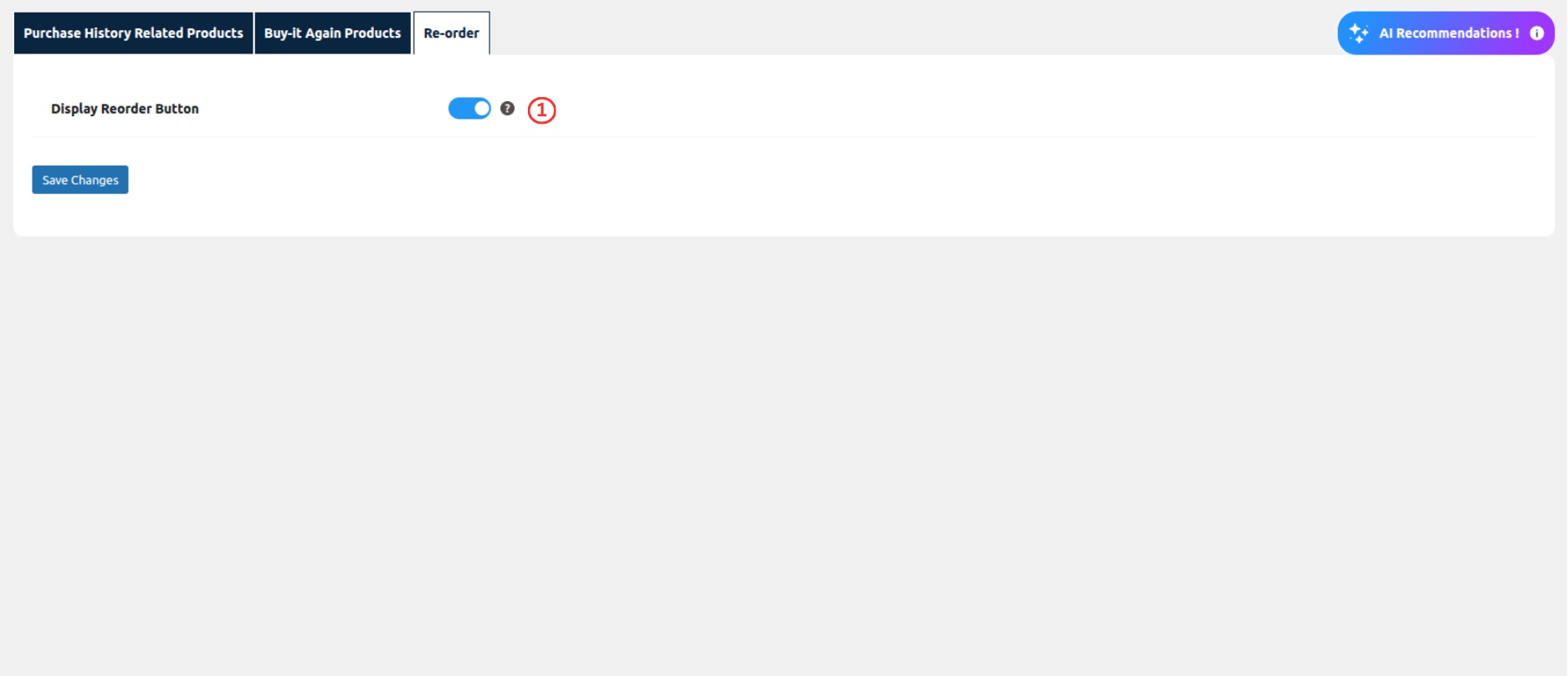
Display Reorder button: This setting allows admin to enable/disable the Re-order button on the Order detail page in My Account
Visit My Accounts > Orders. The ‘Re-order’ button visibility depends on the ‘Display Reorder Button‘ setting.
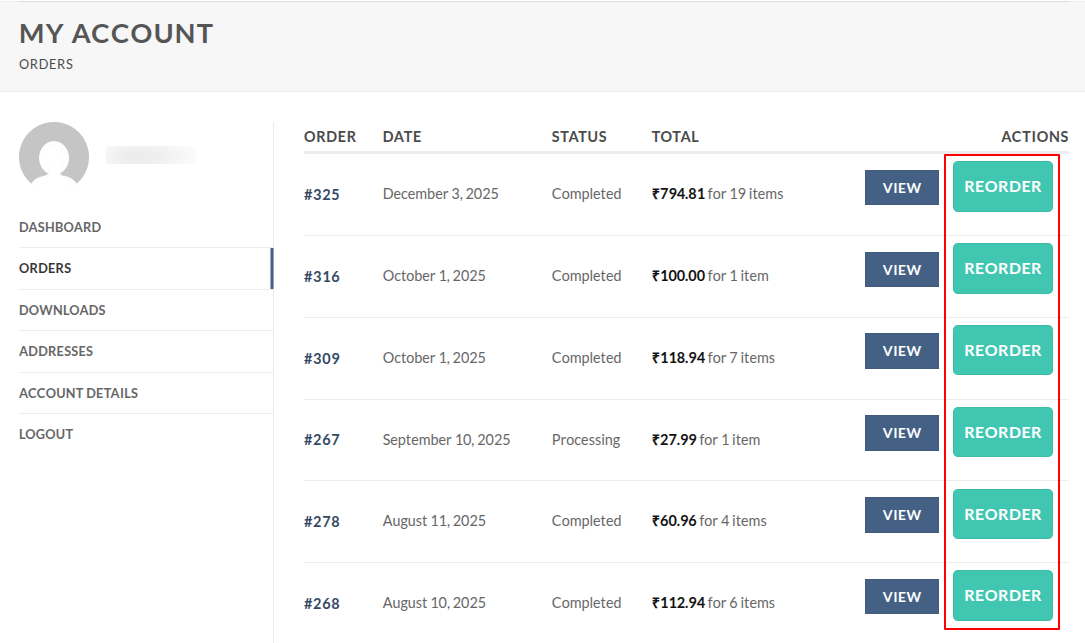
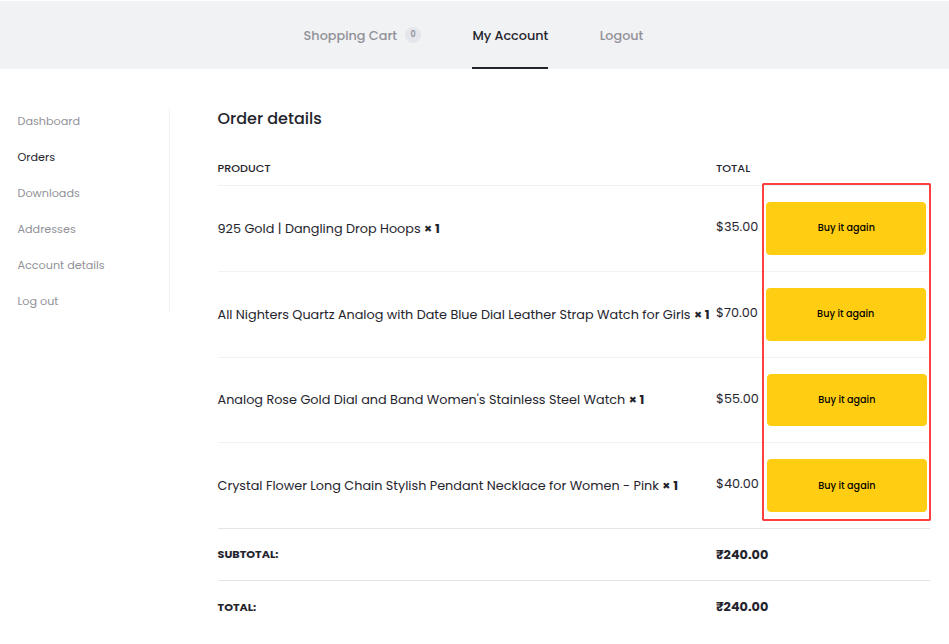
Visit My Accounts > Orders > View. The ‘Buy It Again’ button visibility depends on the ‘Display Reorder Button‘ setting.