General Settings allow you to define global configurations for product sliders and recommendation behavior across your site. These options help maintain visual consistency, control product visibility, and streamline bulk management without requiring repeated customization.
The settings configured here apply site-wide and act as defaults for sliders, bulk edit screens, and recommendation features.
How to Access General Settings
Navigate to the WordPress admin dashboard and go to:
Related Products Pro > Settings > General
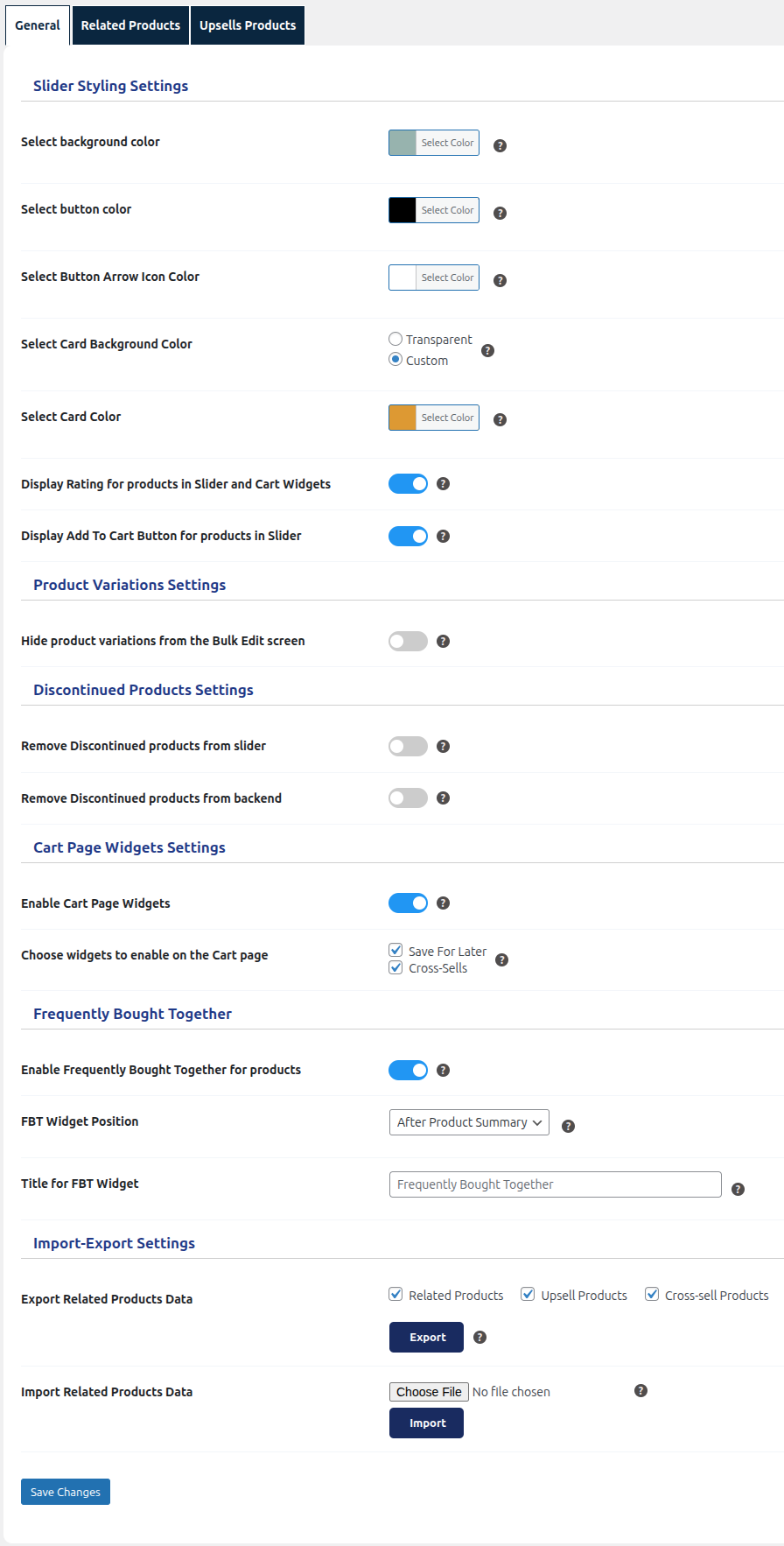
- Select background color: This option allows you to choose the background color of the product slider container. The selected color will be applied globally to all sliders unless overridden.
- Select button color: Use this setting to define the color of the slider navigation buttons (Previous / Next). This helps ensure the buttons match your site’s branding.
- Select Button Arrow Icon Color: This setting controls the arrow icon color inside the slider navigation buttons, giving you more granular control over contrast and visibility.
- Select Card Background Color: Choose how individual product cards appear inside the slider:
- Transparent – Cards inherit the slider background.
- Custom – Allows you to set a custom background color for product cards.
- Select Card Color: This settings allows you to change the color of the card in the slider
- Display Rating for products in Slider: Enable this option to show product ratings (stars) within:
- Product sliders
- Cart page widgets
- Display Add to Cart Button for products in slider :This options allows you to choose whether you want to show the add to cart button in the slider.
- Hide product variations from the Bulk Edit screen: Enabling this option will prevent product variations from appearing in Bulk Edit screen and AI Suggestions popup. This is particularly useful when you don’t want to set individual product variations in UpSells, Cross-sell or Related sections.
- Remove Discontinued products from slider: When enabled, discontinued products will not appear in frontend sliders, ensuring customers only see available or active products.
- Remove Discontinued products from backend: Enable this option to exclude discontinued products from admin-side listings and configurations, keeping the backend cleaner and easier to manage.
- Enable Cart Page Widgets: Turn this option on to activate product widgets on the cart page.
- Choose Widgets to Enable on the Cart Page: Select which widgets should be displayed:
- Save for Later
- Cross-Sells
- Enable Frequently Bought Together for products: Enabling this option shows products that are often bought together on the product page
- FBT Widget Position: Choose where the Frequently Bought Together section should appear on the product page. This controls the placement of the recommendations.
- Title for FBT Widget: This TextField enables to set the Title for the Frequently Bought Together Widget.
- Export Related Products Data: This option allows admins to export configuration data for:
- Related Products
- Upsell Products
- Cross-sell Products
Selected data can be exported together using the Export button for backup or migration purposes.
- Import Related Products Data: Admins can import previously exported recommendation data using a file upload. This is useful for:
- Site migrations
- Staging-to-live synchronization
- Reusing configurations across multiple stores