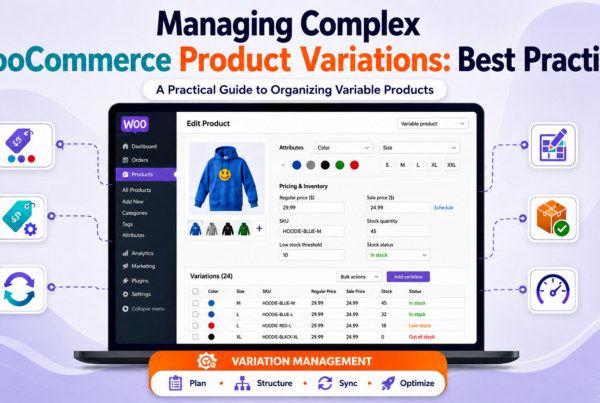









Buy 1 Get 1 Free WooCommerce discounts are commonly used by businesses to boost sales and get customers to buy certain products. In addition, such offers enable companies to provide their clients with a much-needed opportunity to obtain an additional product for free or at a reduced price.
Therefore, BOGOs are very popular among businesses because they have the incredible capacity to boost average purchase amount, sales and even get rid of stock.
Store owners looking to increase orders, keep loyal clients, direct more traffic to their online store and maximize the amount of orders placed by their clients will find this a perfect option. It enables businesses to give customers the sense that they are getting added value for the same amount of money.
In this regard, these promotions are a great means of enhancing customer experience, boosting sales, conversions and retention rates. Last but not least, free or cheap offers for another product can be a game-changer for the company’s profits as well as its satisfaction and loyalty.
Benefits of BOGO
1. Improves customer responses
Psychological considerations account for 66% of customers’ preference for Buy One Get One WooCommerce deals over other reductions. By giving out a free item, you increase earnings and cultivate enduring customer satisfaction while making customers feel like they got a great deal.
2. Faster inventory clearance
Since customers prefer to receive one item free with their purchase rather than a single product at half price, Buy One Get One WooCommerce offers are affordable and assist in moving inventory rapidly. By effectively removing outdated inventory, this method creates space for new inventory cycles.
3. Share profits with customers
By distributing earnings to customers rather than stakeholders, BOGO marketing helps establish brand identity, outreach, and credibility.
4. Reduce Cart Abandonment
Giving away a product for free will tempt customers to go back to their abandoned carts and complete their purchase, increasing sales and reducing cart abandonment.
Choosing the Right WooCommerce Plugin for BOGO
1. Buy One Get One Free for WooCommerce
Buy One Get One Free for WooCommerce is an excellent choice for those who want to get rid of their stock and offer special promotions. This plugin helps to create amazing offers, like ‘buy two, get one free’, ‘buy three, get two free’.
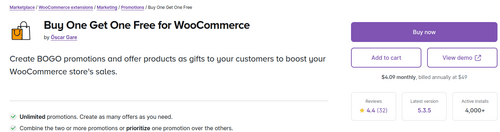
Set a minimum purchase quantity to activate deals, enable promotions with particular WooCommerce advanced coupons, and automatically add gift items. You can also set start and finish dates, create role-based offers (for example: wholesalers,) and restrict how frequently customers utilize a deal.
Unique feature: When a consumer qualifies for a promotion, this plugin allows them to select their gift.
Pricing: The plugin can be availed at $49.00 annually.
2. ELEX WooCommerce Dynamic Pricing and Discounts Plugin
With ELEX WooCommerce Dynamic Pricing and Discounts plugin, you can configure several kinds of discounts in your WooCommerce store at the cart, category, product, and combination levels.
Discounts in products or categories that accept ‘both with order’ discounts or even WooCommerce product tags can be offered for a BOGO. For instance, customers who purchase a product with a particular tag can receive a free product.
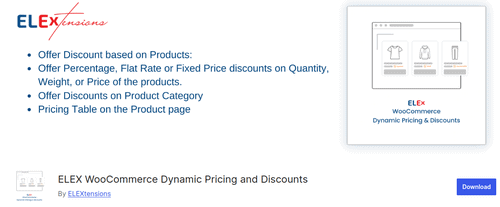
Additionally, it makes discounts more clear to customers by displaying pricing guidelines and offer tables on product pages.
Top feature: The advanced control options to configure discount options based on payment method, email, purchase history, and user roles.
Pricing: $75 for one site, $119 for five, and $199 for twenty-five.
Looking to take your store’s functionality further? WooCommerce plugin development can help you create custom features like tailored promotions, boosting your store’s performance. Use specific plugins that are custom and relevant for your business and provide a new feature to your store.
3. Smart Coupons for WooCommerce
Smart Coupons for WooCommerce allows you to easily craft Buy One Get One WooCommerce discounts, add restrictions on coupons, set up automatic coupons and handle coupons for giveaways.
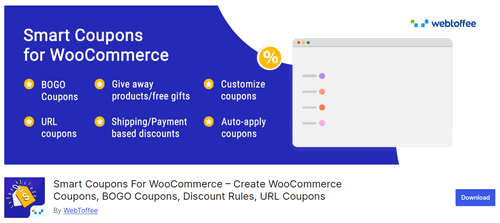
This is a free plugin that you can use to determine which products qualify for the Buy One Get One WooCommerce offer and which ones are free, and can also apply percentage or price-based discounts, as well as partial and full discounts.
Unique feature: WooCommerce Buy One Get One WooCommerce coupon can be configured to be applied multiple times such as Buy 2 Get 1, Buy 4 Get 2 etc. The BOGO WooCommerce requirements will be applied for by the cart automatically when it meets the requirements.
Pricing: The basic version of the plugin can be used for free. To avail more functionalities $89 subscription fee is applicable.
Maximize your store's potential with custom WooCommerce plugins.
Contact WooCommerce Plugin Developers today!Step-by-Step Guide to Creating a BOGO Offer in WooCommerce
In order to understand how to create BOGO WooCommerce offers we are going to be using the WooCommerce plugin Smart Coupons For WooCommerce. This plugin has Buy One Get One WooCommerce features in its free version.
Once you activate the plugin, the following interface will be displayed.
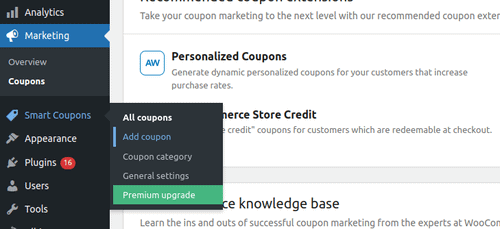
Step 1: Go to Smart Coupons and select the “Add coupon” option.
Next, you can select ‘BOGO’ as the discount type, enabling a ‘Buy One, Get One Free’ offer. You can also offer this coupon to let customers free shipping. To set the promotion’s timeframe, specify the coupon’s start and expiry dates.
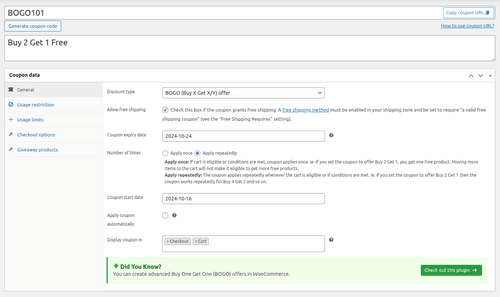
Also decide whether the coupon can be used a single time by a customer or can be used many times by a customer. Lastly, decide whether the coupon will appear on the checkout page, in the cart page or in the ‘My Account’ page.
Step 2: The Usage Restriction setting in WooCommerce lets you restrict coupon usage by Cart value, Product selection, and quantity restrictions. You can specify a minimum spend, maximum spend, specific products or categories and ensure that the coupon can’t be used along with other offers.
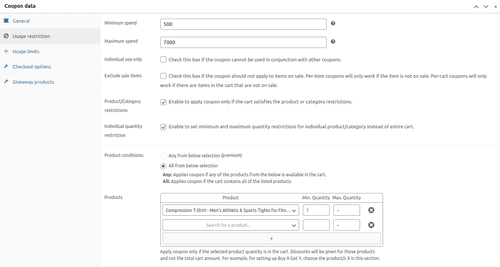
Also, it allows you to implement product-specific rules, like specify a specific amount of the product needed to qualify for the offer; have a more specific control over your promotions; and ensure that they are directed toward the right products.
Step 3: You can adjust the number of times a coupon is allowed to use the Usage Limits settings. An overall usage maximum can be defined for the coupon, as well as how many items the coupon may be used for, and how many users it is allowed for.
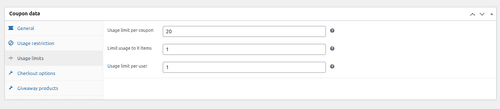
In this case, the coupon will have a maximum of 100 uses, 1 user may use the coupon a single time and 1 item per use, thus it will be used in a controlled and fair manner.
Step 4: You can set the products that customers will receive for free or at a discount when they do the things outlined in the coupon conditions in the Giveaway products section.
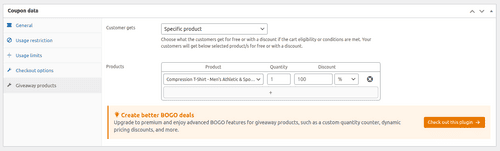
For this case, customers may order a printed tops with a 100% discount, and a compression t-shirt with a 100% discount. This configuration can also be used to provide attractive Buy One Get One WooCommerce offers or any other promotional discounts to encourage sales.
Step 5: Update the settings to save them. Once the customer adds the desired product to the cart, and it meets the conditions for the product to qualify for the Buy 1 Get 1 WooCommerce offer, then the product will be added to the cart for free.
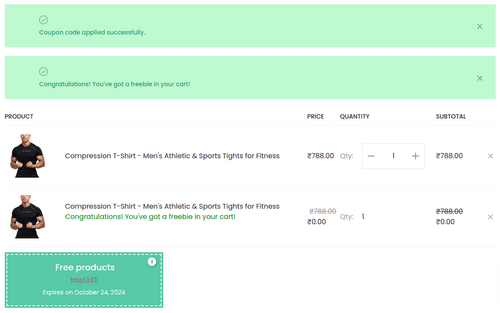
So with the help of Smart Coupons for WooCommerce, you have now created a ‘Buy One, Get One Free’ (BOGO) discount!
The Smart Coupons for WooCommerce plugin allows you to set up interesting BOGO deals and promotions, but may lack some features such as action-based countdown timers or prioritized messages.
One of the most significant difficulties of WooCommerce store owners is turning browsers into customers. Users tend to browse products before putting them in their shopping carts and then abandoning them before checkout.
A serious need is to get people to know about the available discounts and offers on your WooCommerce store. These “limited-time discounts” placed on product, cart and checkout pages create a sense of urgency and help push the customers to buy the items in their cart.
Here Dynamic Cart Messages Pro for WooCommerce comes in the picture. It’s the perfect WooCommerce cart plugin for designed and interesting promotions. This plugin allows you to create specific messages for the WooCommerce cart page which helps to encourage people to add more items from their favourite categories or products.
Steps to Set Up Cart Messages using Dynamic Cart Messages Pro for WooCommerce
Step 1: After installing and activating the plugin the following setting will be displayed. You can choose to show messages based on product categories from a dropdown list of available product categories for eg: women’s clothing, or choose specific products from a dropdown list of all products.
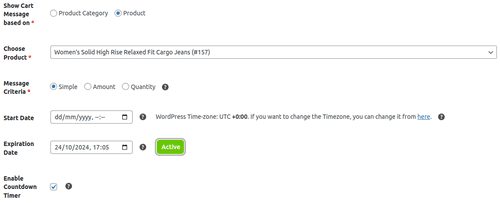
Step 2: Choose the Cart Message based on Simple, Amount, or Quantity criteria. Simple message criteria can be used to set up steady, unchanging cart messages like BOGO. Amount criteria can be used to display the cart message dynamically as the total cart value changes according to the set threshold value.
By selecting quantity criteria you can display cart messages based on how many items are currently in customers’ carts, changing as the customer adds/removes items.
Step 3: Set a start date and expiration date for the messages so they’re only visible within the time frame you select, and then decide if you want a countdown clock. Then, you get to customize the initial message that customers will see based on their selection.

Step 4: Enable or disable the countdown timer, and choose the format of the countdown e.g., Small Box Ghost, Large Box Fill, etc. Select the type of countdown i.e. “Schedule Timer” or “Evergreen Countdown”. In addition, personalize the text that is displayed when the countdown ends.
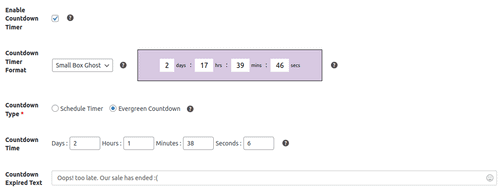
Step 5: To create urgency display the countdown timer on the product, cart as well as checkout page. The background, text and other elements in the message (such as icons and buttons) can be assigned custom colours to help create a more compelling appearance.
If you’re sure everything is perfect, review your modification and update the settings to allow you to see the cart message on your WooCommerce website.

Congratulations! You now have a special offer and countdown timer that includes a clear call to action. This effective duo is great for sales conversion and instilling a sense of urgency in customers.
Conclusion
Offering Buy One Get One WooCommerce deals can be an excellent approach to boost sales, sell out inventory, and raise client satisfaction in your WooCommerce store. Be sure to select the plugin that meets your requirements and case by case make use of the stepwise guide to make engaging promotions.
The use of BOGO offers with Dynamic Cart Messages Pro for WooCommerce can work together to create a powerful combination for customers to increase the number of items they place in their shopping carts and end up purchasing.