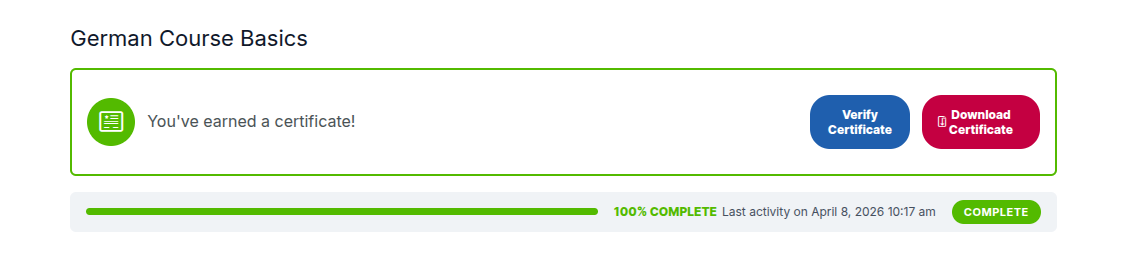
Anyone can verify a certificate, whether they are logged in or not. There are two ways to verify a certificate:
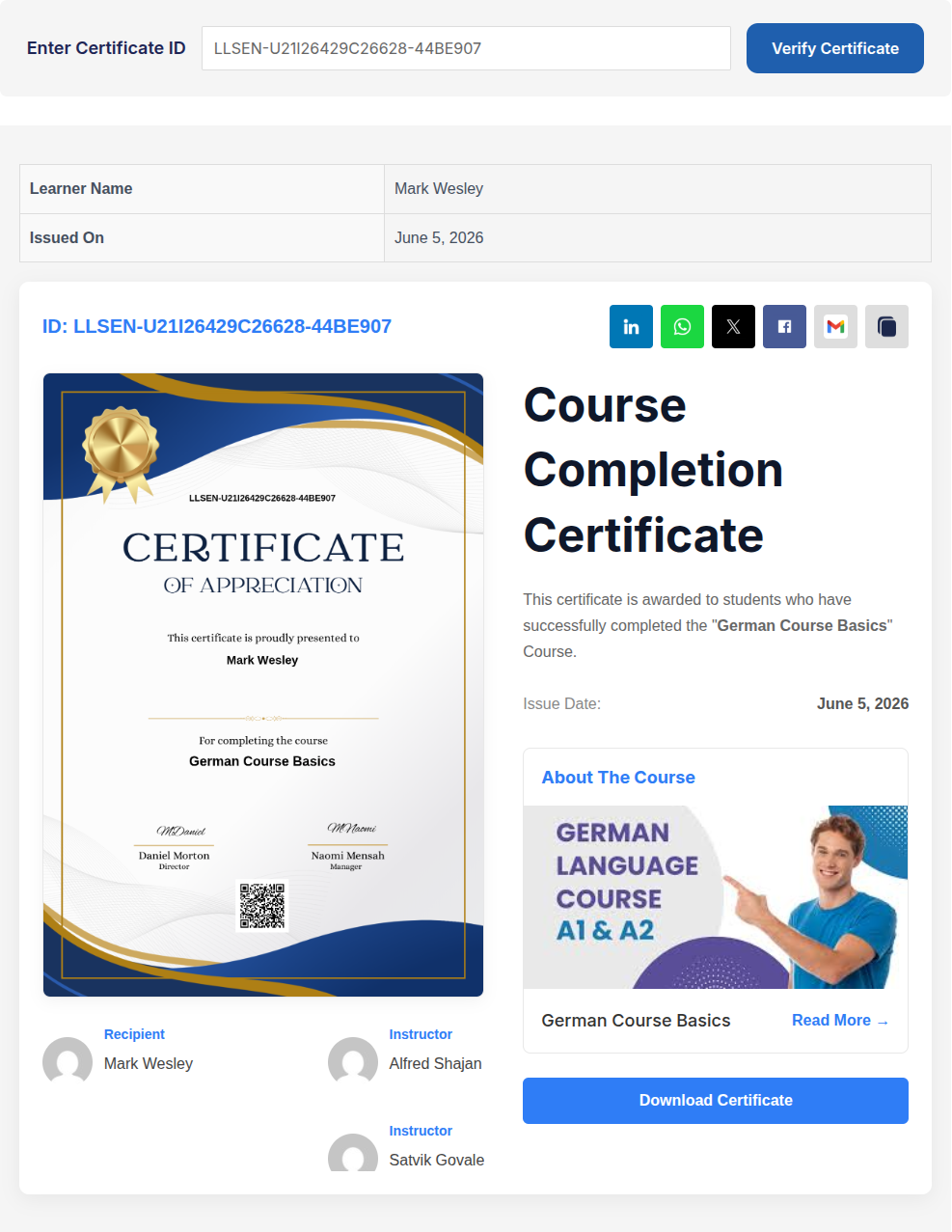
Option 1: Verify Using the Certificate ID
- Open the Verification Page.
- Enter the Certificate ID shown on the certificate.
Example: MCSLD-U01I01C01-COD01 - Click Verify Certificate.
- A page displays the certificate verification details.
Option 2: Verify Using the QR Code
Certificates that include QR code, When that QR code is scanned,
- The verification page opens automatically.
- The certificate ID is pre-filled.
- Verification runs automatically.
The verification includes:
-
- Learner name
- Issue date
- Certificate name
- Course, group, quiz, or lesson details
- Certificate preview, when available
- Download Button
Certificate Preview on Verification Page:
When a certificate PDF is stored on the server, the verification page shows a preview of the certificate.
If the PDF is not stored, the preview shows a placeholder message instead. This can happen when Disable saving to the server is enabled.
Note: Certificate PDFs are stored by default under: /uploads/mcsld-multiple-certificates/
Verify from the LearnDash Completion Alert:
After completing a course or group, learners may see a Verify Certificate button on the LearnDash success alert. When clicked, the button opens the verification page in a new tab.