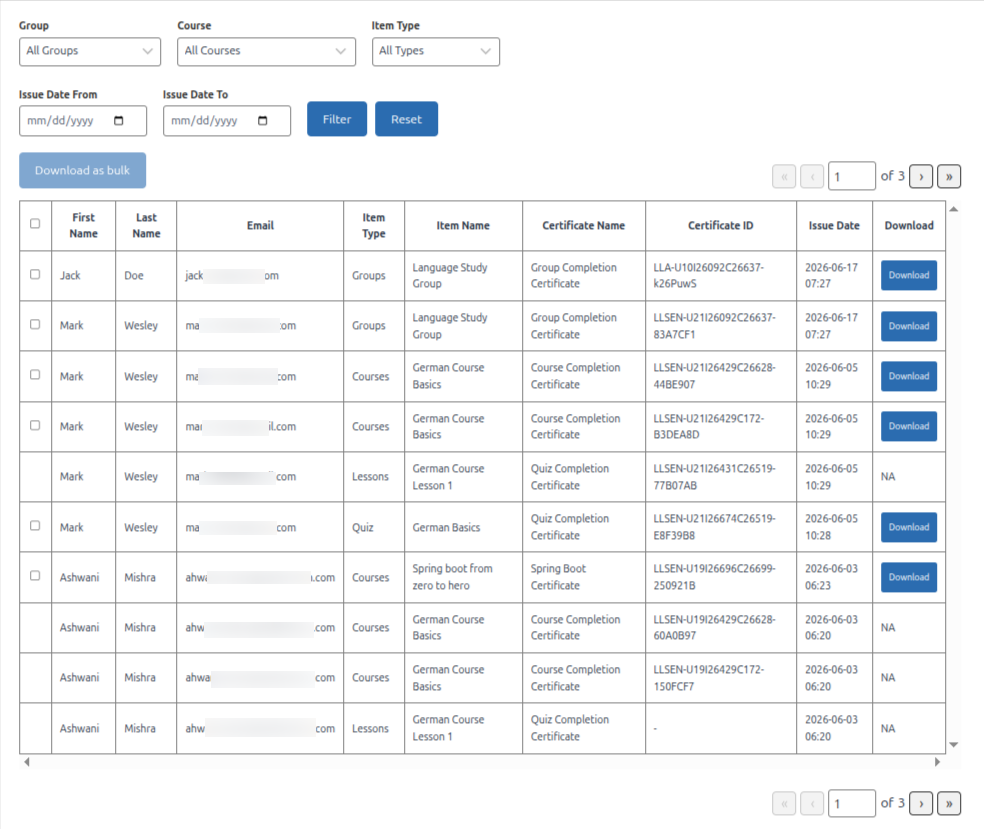
Multiple Certificates Pro for LearnDash includes an All Issued Certificates page where administrators and group leaders can view, filter, and download certificates issued across your LearnDash site.
On activation, the plugin automatically creates a page titled All Issued Certificates with the shortcode [mcsld_all_certificates_issued_table]. You can change which page is used from the plugin settings.

Configure the All Issued Certificates Page
- Go to LearnDash → Settings → Multiple Certificates for LearnDash
- Open the Certificate Verification & Sharing tab
- Under the All Issued Certificates Page, select the page that should display the issued certificates table
- Click Save settings
Use the View Page link next to the setting to open the page in a new tab
Note: The selected page must contain the shortcode [mcsld_all_certificates_issued_table]. The default page is created with this shortcode already in place.
The table lists certificates earned from Courses, Groups, Quizzes, and Lessons, and includes:
- First Name
- Last Name
- Item Type (Courses, Groups, Quizzes, and Lessons)
- Item Name
- Certificate Name
- Certificate ID
- Issue Date
- Download
Use the filters at the top of the table to narrow results:
- Group — filter by a specific LearnDash group
- Course — filter by course (updates based on the selected group)
- Item Type — filter by Course, Quiz, Lesson, or Group
- Issue Date From / Issue Date To — filter by certificate issue date range
Click Filter to apply, or Reset to clear all filters
Download Certificates:
- Single download: Click the Download button on any row where a stored PDF is available
- Bulk download: Select one or more certificates using the checkboxes, then click Download as bulk
Note: Download is shown as NA when the certificate PDF was not saved on the server (for example, if Disable saving to server is enabled for that course, group, quiz, or lesson).