
This is the first and most essential step in setting up your cart message. In this tab, you define when, where, and how the message should appear, what conditions trigger it, and whether it includes advanced features like countdown timers.
Schedule Message:
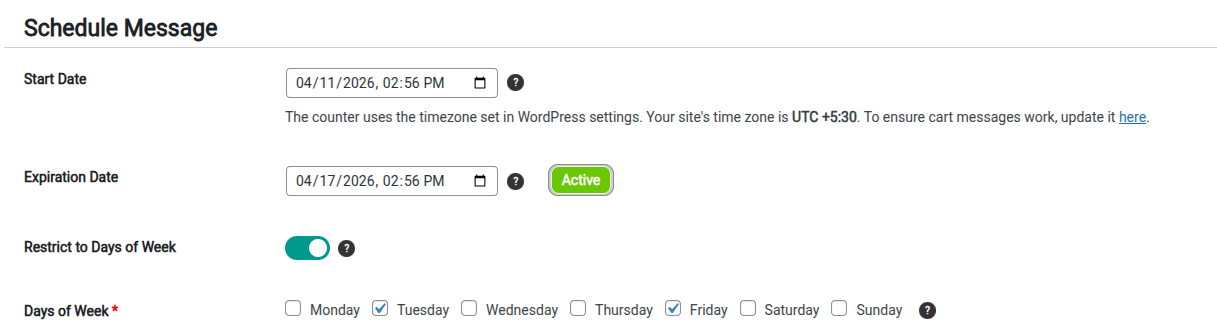
- Start Date:
This feature allows you to specify both the date and time at which the Cart Message should begin appearing. - Expiration Date:
You have the ability to set the exact date and time when the Cart Message will no longer be displayed. - Restrict to Days of Week : This feature allows you to display the message on specific days of the week, you can check the days on which the message should be displayed
Display Options:
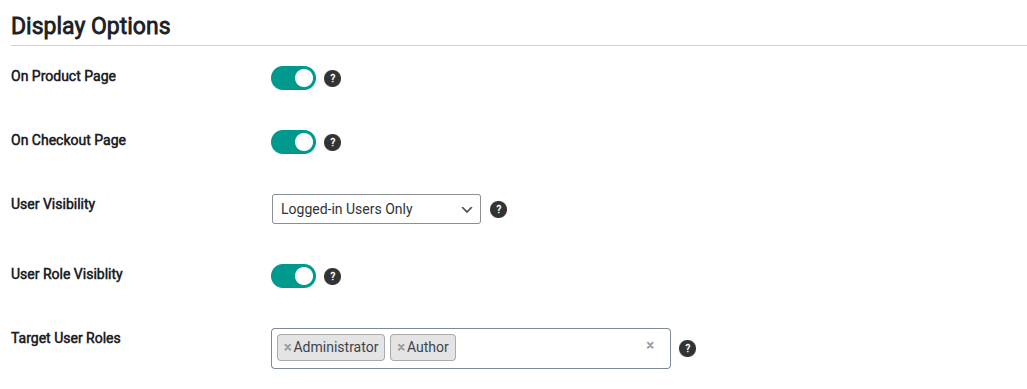
Choose where the message will be displayed. By default, the message is shown on the cart page. However, by enabling these options, the admin can also display the message on the product page and the checkout page.
- On Checkout Page:
Toggle this option to display the cart message on the checkout page. - On Product Page:
Toggle this option to display the cart message on the product page. - User Visibility Options: Allows you to restrict the display of the cart message based on user type: Logged-in Users, Guest Users, or Both.
- User Role Visibility: Allows you to display the cart message only to specific user roles. Only users assigned to the selected roles in the dropdown will see the cart message.
Cart Message Criteria & Product Selection:

Show Cart Message based on:
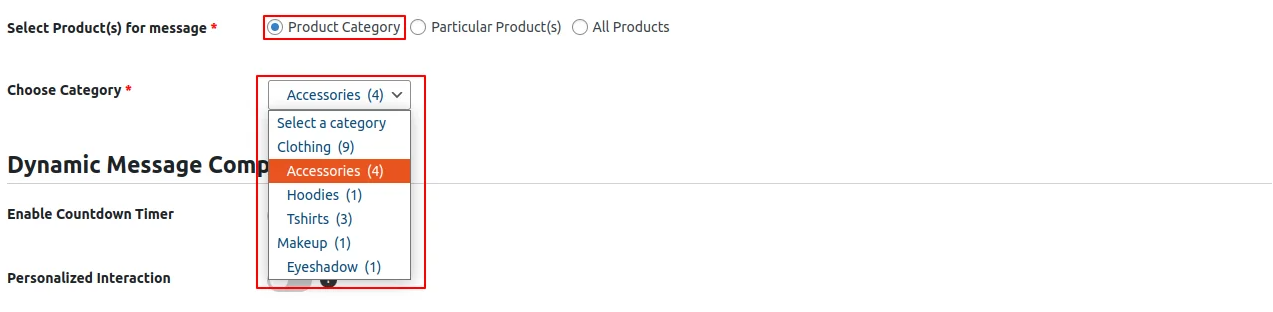
- Product Category: Look for the ‘Choose Category’ dropdown in the next field. It lists all the available product categories. When you choose one, the selected setting applies to all the products in that category.
-
- Particular product(s) : In the field next to it, you’ll see the ‘Choose Product’ dropdown, which lists all individual products and allows you to select a single product or multiple products.

-
- All Products : This setting allows the admin to display the cart message for all products in the store. Selecting this option ensures that the message applies universally across the entire product catalog. If the admin has enabled ‘Include Out-of-Stock Products’ and ‘Include Discontinued Products’ in the global settings, the cart message will also be displayed for those products.
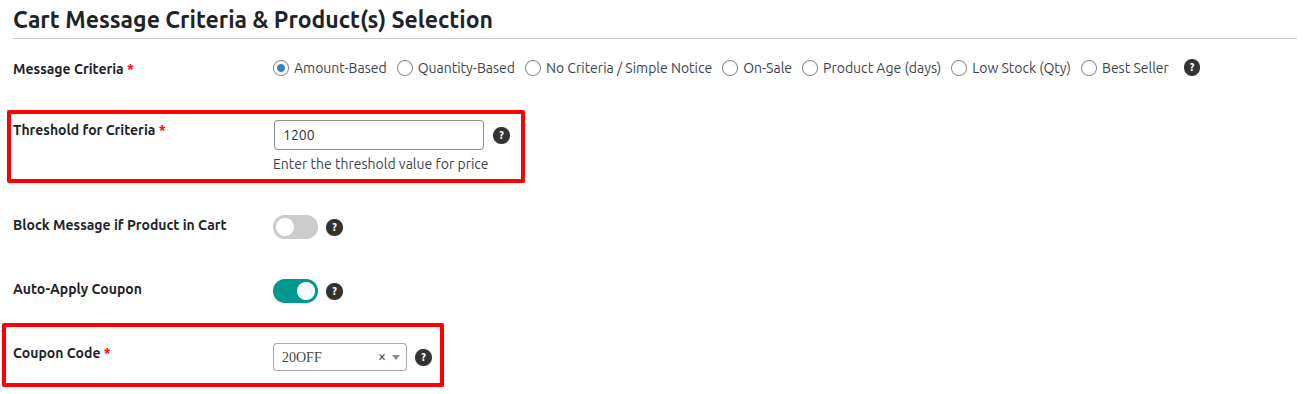
Message Type and Threshold: : This setting allows the admin to choose the type of cart message and whether it is linked to a threshold. The threshold value is set in the Threshold for Criteria field, which determines the required cart amount or quantity needed to trigger the message succession.
-
- Amount-Based : Displays a cart message that dynamically updates based on the total cart amoun.Suitable for offers like “Add $40 more to get free shipping!”
- Quantity-Based : Displays a cart message that adapts to the changing quantity of items in the cart. Suitable for offers like “Add 9 more items to unlock a 20% discount!”
- No Criteria / Simple Message: This option Creates a static, unchanging cart message with no applicable threshold.
- On Sale: This option displays the cart message on products that are currently on sale in the store.
- Product Age: This option enables a text field where you can enter a number representing days. The cart message will be displayed on products that were published within the specified number of days.
- Low Stock: Enabling this option shows a text field where you can enter a number representing the stock quantity. The cart message will be displayed on products with stock equal to or below the specified quantity.
- Best Seller: This option displays the message on products that are bestsellers.

Blocked Products in Cart:

This option allows you to select specific products which, if present in the cart, will prevent the cart message from being displayed. In short, if any of the selected products are added to the cart, the cart message will be hidden for that cart.
Auto Apply Coupon Option: This option works only for amount-based and quantity-based message criteria. Enabling this option provides a dropdown to select the coupon you want to apply. The selected coupon will be automatically applied when the message criteria threshold is satisfied.
Example: For an amount-based criterion of $1200, if products worth $1200 are added to the cart, the selected coupon will be automatically applied during checkout.
Message Control:

- This setting is available for each individual cart message.
- When enabled, it ensures the cart message will not apply to out-of-stock products, even if the global setting includes them.