
Multiple Certificates Pro for LearnDash lets you add a unique Certificate ID and a scannable QR code directly on each LearnDash certificate. Adding QR/ID to the certificates is totally optional.
When a student earns a certificate, the Certificate ID and QR code are generated automatically and printed on the PDF, if edited learndash certificates have the QR/ID shortcodes in it.
This allows anyone to verify the authenticity of the certificate online using the Certificate Verification page.
Shortcodes to Use: Add these shortcodes to your LearnDash certificate templates if you want the ID/QR on the certificates.
- [mcsld_certificate_code] : Displays the unique Certificate ID for the learner.
- [mcsld_certificate_qr] :Displays a QR code that links to the certificate verification page.
You can add one or both shortcodes to any certificate used for a Course, Group, Quiz, or Lesson.
Add Certificate ID & QR to a Certificate
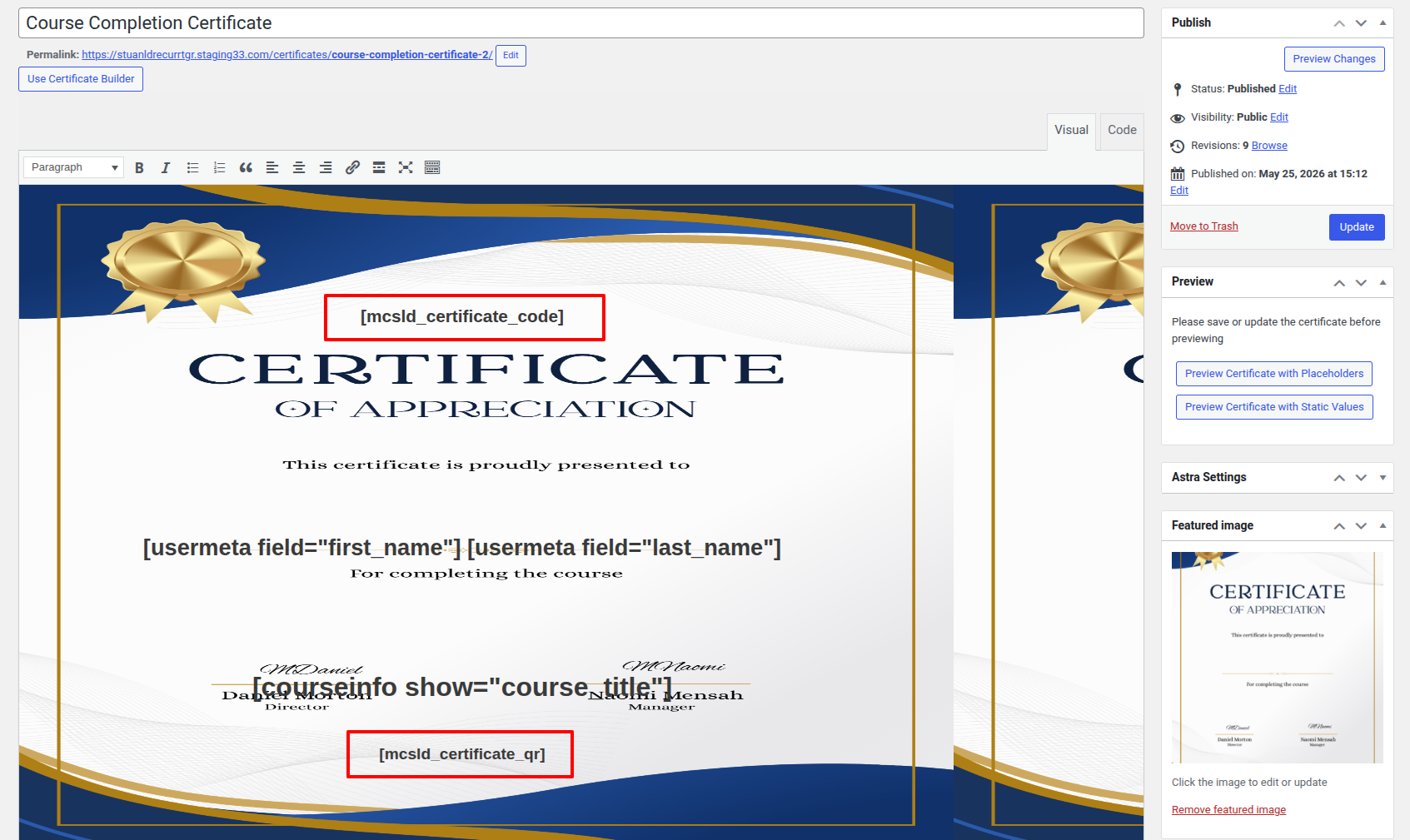
Follow these steps to add the shortcodes to a certificate:
- Go to LearnDash LMS → Certificates.
- Edit the certificate you want to update, or create a new one.
- In the certificate content or LearnDash Certificate Builder layout, place the shortcodes where you want the ID and QR code to appear.
- Add the Certificate ID shortcode: [mcsld_certificate_code]
- Add the QR code shortcode: [mcsld_certificate_qr]
- Click Update to save the certificate.
When previewing the certificate from the edit screen, a sample ID and placeholder QR image are shown. The real unique Certificate ID and QR code are generated only when a student actually earns the certificate.
Certificate ID Format
Each certificate is assigned a unique ID in this format: PREFIX-U{UserID}I{ItemID}C{CertificateID}-RANDOM
Example: MCSLD-U01I01C01-COD01
The prefix can be customized from LearnDash → Settings → Multiple Certificates for LearnDash → Certificate Verification & Sharing → Unique ID Prefix
Appearance of QR/ID on the generated certificate: